Use EterMail from Claude, ChatGPT and Cursor
Add EterMail to your AI app once, sign in, and ask in plain words: “How did last week’s campaign do?”, “Write a launch email for the new collection”, “Build a segment of customers who haven’t ordered in 90 days”. No keys to copy.
https://etermail.ai/mcpClaude (web, desktop and mobile)
Custom connectors are available on Claude’s paid plans. On Team and Enterprise, an owner adds the connector for the organization first.
- In Claude, open Settings → Connectors.
- Click “Add custom connector”. Name: EterMail. URL: https://etermail.ai/mcp. Click Add.
- Click Connect next to EterMail. An EterMail page opens; sign in if asked.
- Check that it names Claude and returns you to claude.ai, choose the workspace and the access (read only, or read and change), then click Allow.
- Back in Claude, start a chat and make sure EterMail is switched on in the chat’s tools menu.
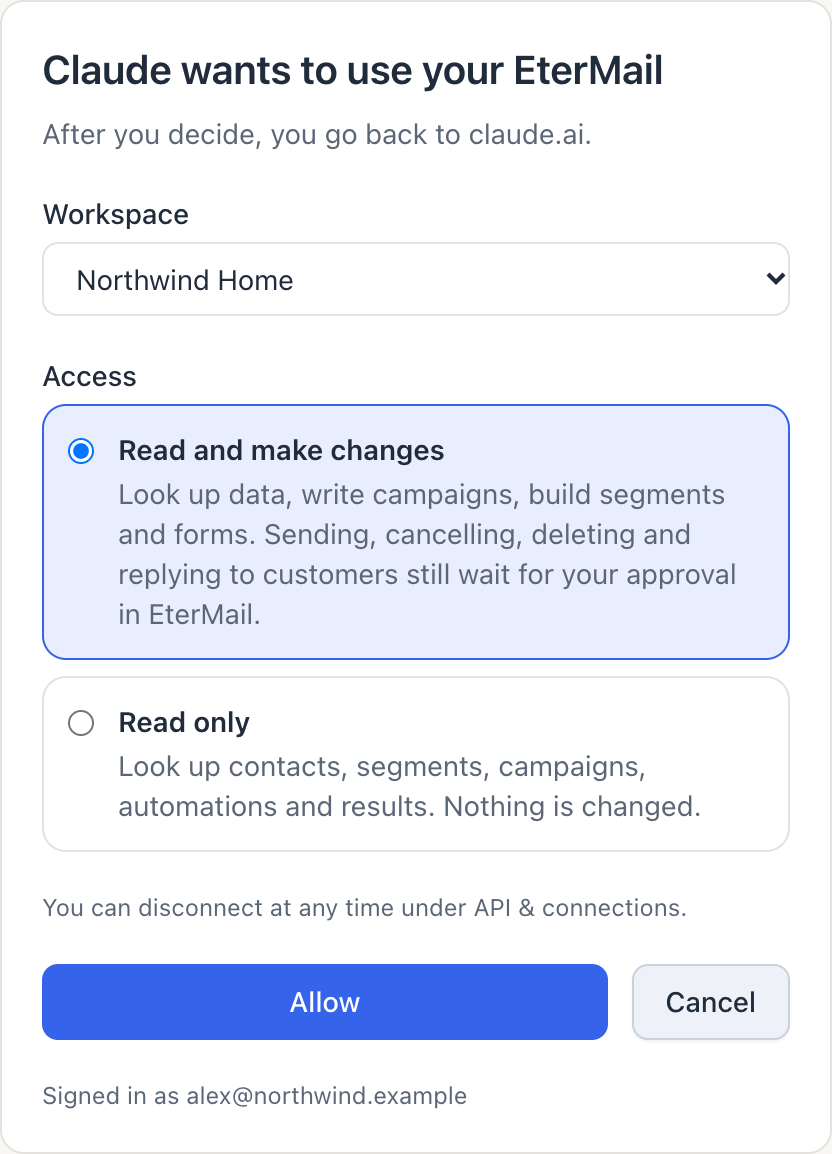
Try: “Using EterMail, show my projects and how last month’s campaigns did.”
By default Claude asks the first time it uses each EterMail tool. In Claude’s Settings → Connectors → EterMail you can set the read-only tools (lists, reports) to Always allow, and the write tools (drafts, segments) too. Sending, cancelling, deleting, replying to customers, cold email and imports still wait for your approval in EterMail, whatever you choose there.
ChatGPT
ChatGPT adds MCP servers as connectors in developer mode (on the plans that offer it; the menu names may differ slightly between versions).
- Open Settings → Apps & Connectors → Advanced settings and switch on Developer mode.
- Back in Apps & Connectors, click Create.
- Name: EterMail. MCP server URL: https://etermail.ai/mcp. Authentication: OAuth. Create it.
- ChatGPT opens EterMail: sign in, choose the workspace and the access, click Allow.
- In a new chat, pick EterMail from the tools (+) menu and ask your question.
Claude Code, Cursor and API keys
Claude Code
claude mcp add --transport http etermail https://etermail.ai/mcp
Then type /mcp in Claude Code, choose etermail and sign in in the browser that opens.
Cursor
Add this to ~/.cursor/mcp.json (or .cursor/mcp.json in a project), then sign in from Cursor’s MCP settings.
{
  "mcpServers": {
    "etermail": { "url": "https://etermail.ai/mcp" }
  }
}
With a project API key (scripts and servers)
Where nobody can sign in, send a secret key (sk_…) from API & connections instead. A key reads its own project only.
{
  "mcpServers": {
    "etermail": {
      "url": "https://etermail.ai/mcp",
      "headers": { "Authorization": "Bearer sk_…" }
    }
  }
}
Prefer a local server? npx -y @etermail/mcp · API guide →
What needs your approval
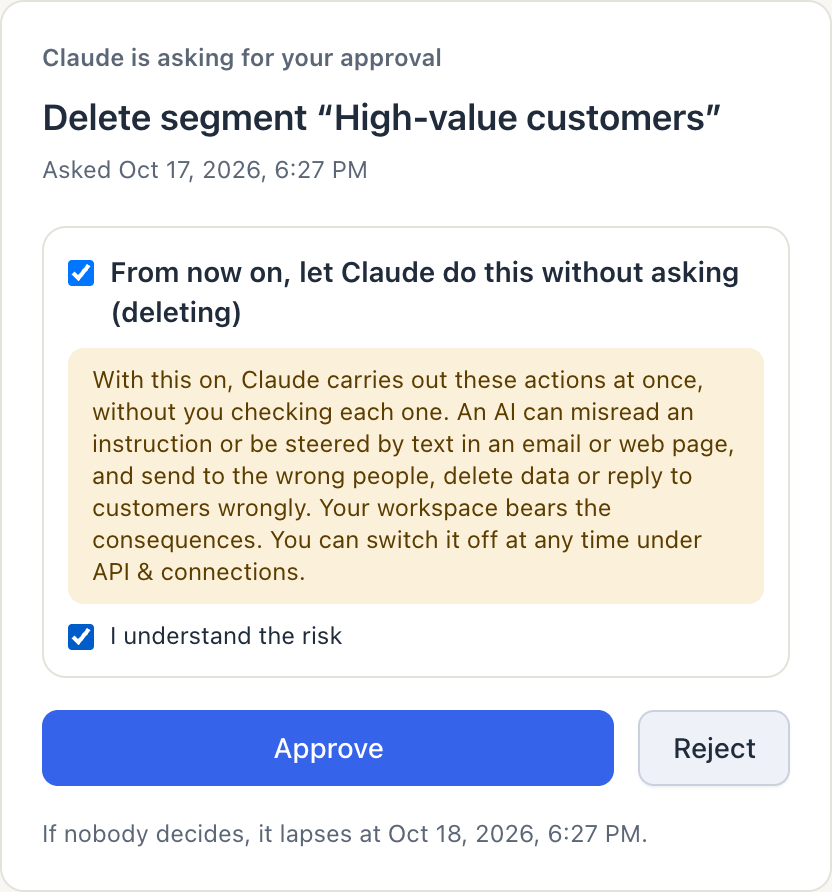
With “read and change”, the app can look things up, write campaign and cold email drafts, and build segments and forms right away. Sending or scheduling a campaign, starting a cold email sequence or adding people to one, pausing or cancelling, deleting, replying to customers and importing contacts or prospects wait for you: the app gives you a link, you open it in EterMail and click Approve. Nothing happens until you do, and the request lapses after 24 hours.
Imports: the app can prepare a list from a CSV or from your existing contacts. The approval page shows how many rows are valid, duplicated, already in your account, unsubscribed or suppressed, and you confirm where the addresses came from (consent for marketing, a legitimate business reason for cold email) each time. Imports never run without asking, and the uploaded file is deleted once you decide.
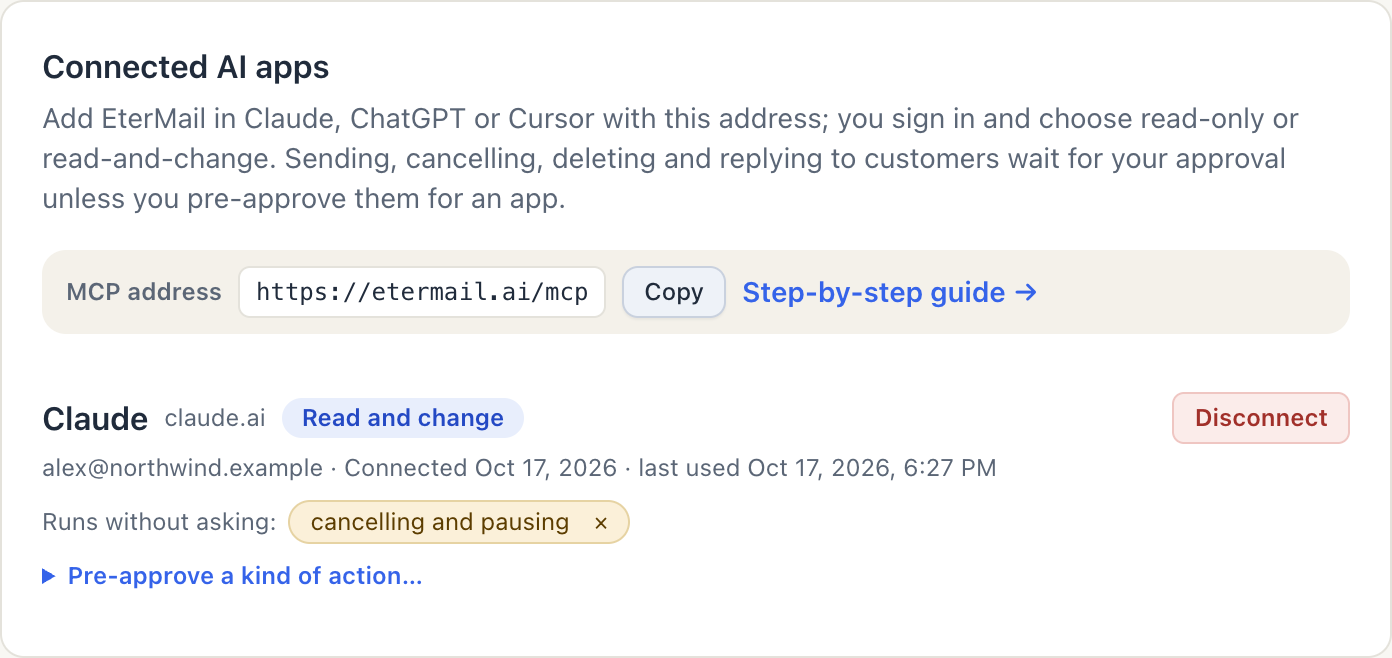
If you trust an app with one kind of action, an owner or admin can tick “From now on, let this app do this without asking” on the approval page, or switch it on under API & connections. The kinds are sending, cancelling, deleting, replying and cold email; imports always ask. The app runs those actions at once from then on — at your own risk — and emails you each time. Sending still stops by itself when bounces or complaints run high or product details have changed, and cold email stops when a mailbox’s health drops. Switch it off at any time: those actions then wait for approval again, and requests already waiting stay for you to approve or reject. Disconnecting the app, or making it read-only, voids its requests that are still waiting.
Safety
- • Only connect apps you started the connection from. The consent page shows where you’ll be sent back to; an app’s name is chosen by the app itself.
- • Choose “read only” when you only want answers.
- • AI can be steered by text it reads, such as a customer’s email. Keep approvals on for sending unless you watch the results closely.
- • Payments, team members, API keys, mailbox passwords and DNS are never available to AI apps.
Screenshots use made-up names.