Connect your Shopify store
Since January 1, 2026, Shopify custom apps are created in the Dev Dashboard. Follow these steps to create a read-only app for your store and enter its Client ID and secret in EterMail. It takes about 10 minutes.
- • You need the store owner account, or a staff account with permission to develop apps.
- • EterMail only requests read access to customers, orders and products. Nothing in your store is changed.
- 1
Open the Dev Dashboard from your store admin
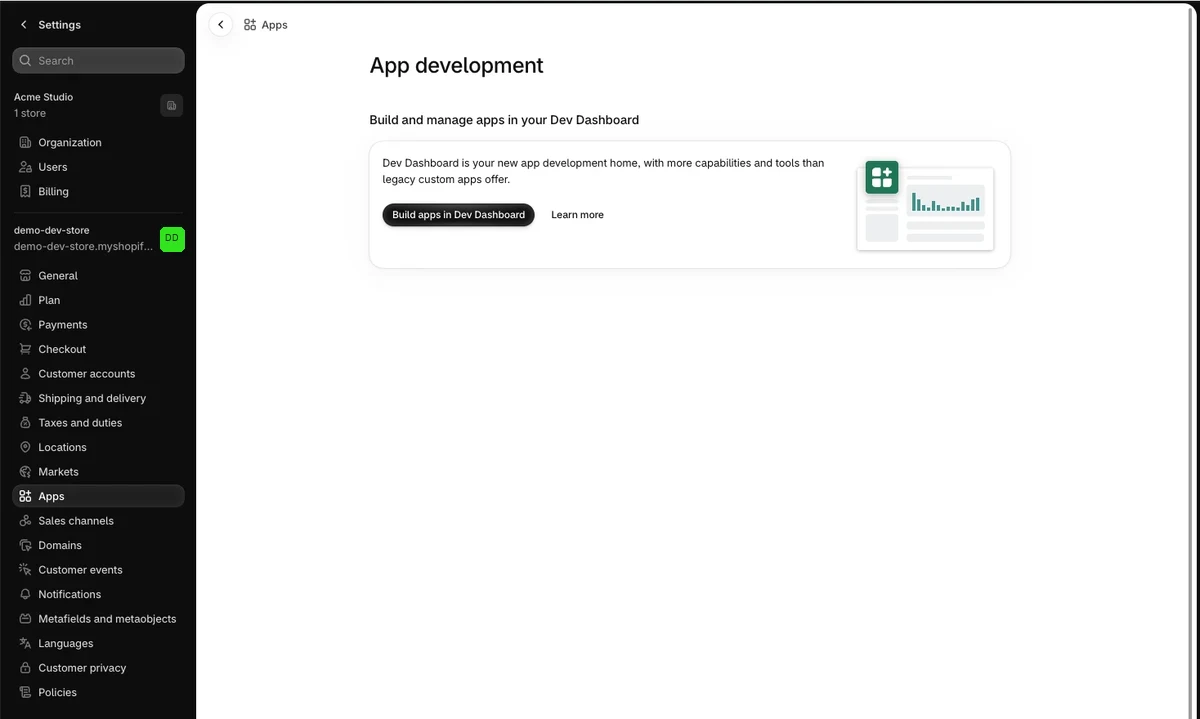
Sign in to the store you want to connect as its owner, go to Settings → Apps → Develop apps and click Build apps in Dev Dashboard. Start from this store's admin so the app and the store belong to the same organization.
- 2
Create the app
In the Dev Dashboard, click Create app and fill it in as shown: App name "EterMail"; App URL https://shopify.dev/apps/default-app-home with "Embed app in Shopify admin" unticked; and the three scopes below under Scopes. Leave everything else as is and click Create app.
read_customers,read_orders,read_products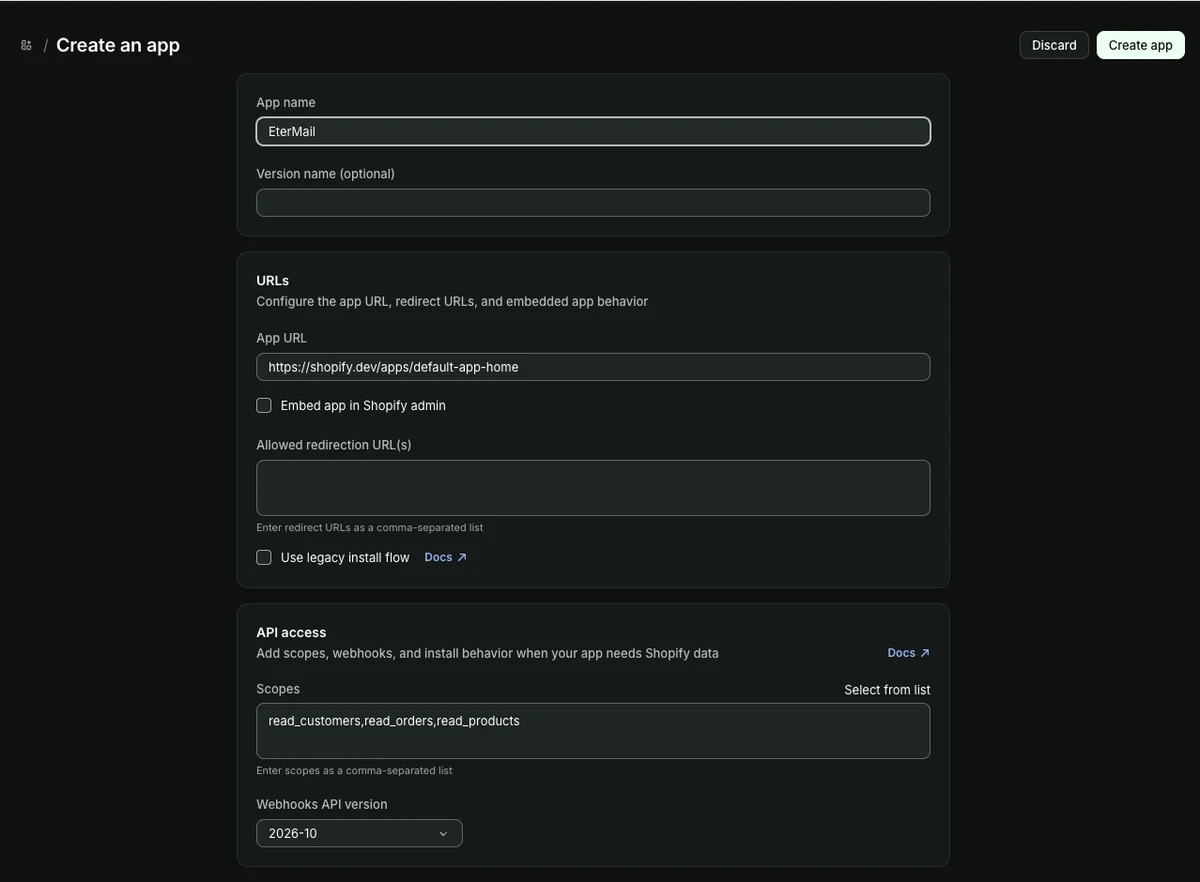
- 3
Release the version
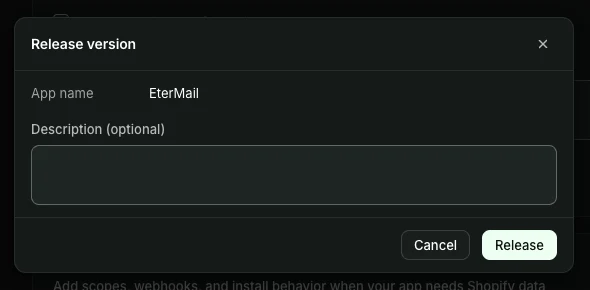
In the Release version dialog, click Release. The scopes take effect.
- 4
Choose the store
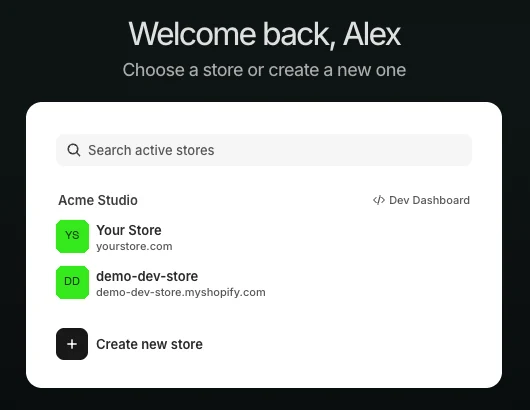
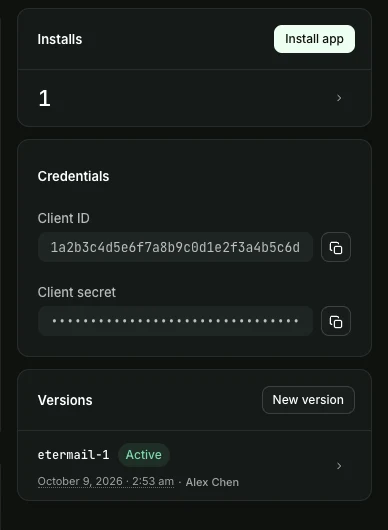
On the app's Overview page, click Install app in the Installs card and choose the store to connect. If the store isn't listed, the app was created in another organization: go back to step 1 and start from that store's admin.
- 5
Confirm the installation
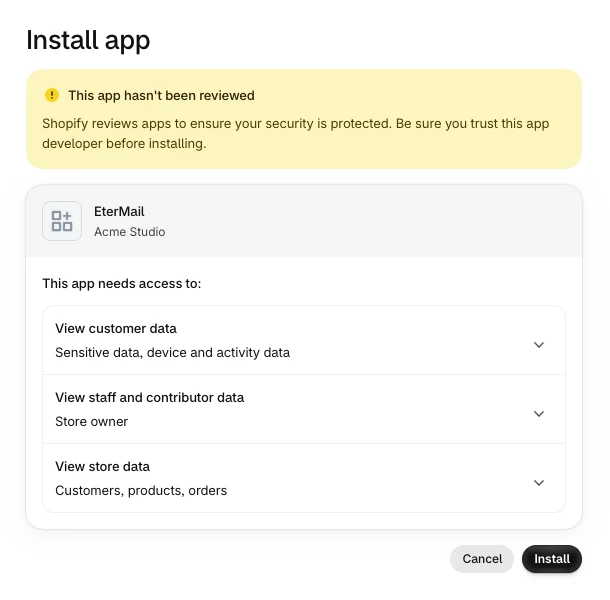
The install page warns "This app hasn't been reviewed". That's expected, because you created the app yourself. Check that it asks to view customer, product and order data, then click Install.
- 6
Copy the Client ID and secret
Back on the app's Overview page, use the copy buttons in the Credentials card to copy the Client ID and the Client secret. Treat the secret like a password: never send it by email or chat.
- 7
Finish in EterMail
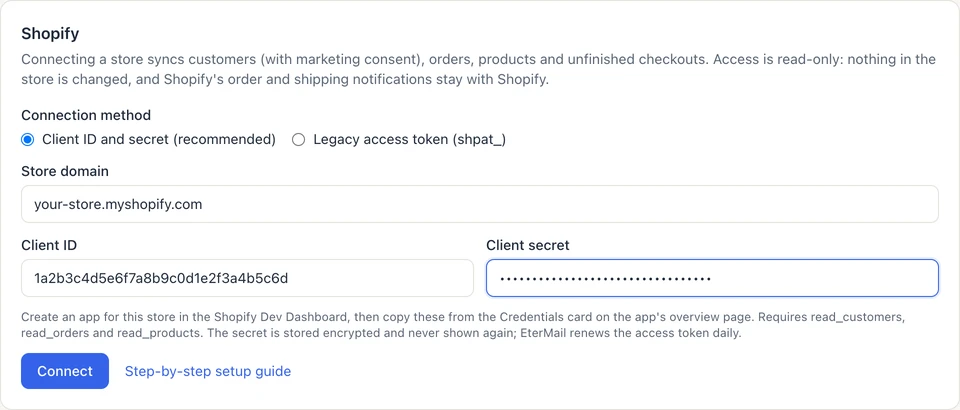
In EterMail, open Project settings → Shopify, choose Client ID and secret, enter your store domain (xxx.myshopify.com), the Client ID and the secret, and click Connect. The first sync starts immediately.
Account, organization and store names in the screenshots are examples.
Troubleshooting
"The app and the store are not in the same organization" (shop_not_permitted)
The app was created under another organization, such as a partner or developer account. Sign in as the store owner and recreate the app from the store admin as in step 1.
Customer emails can't be read (protected customer data)
Customer names and emails are Shopify protected customer data. Apps created in the store's own organization can usually read them right away. If you still see this message, request the Name and Email fields of protected customer data for the app in the Dev Dashboard, release a new version and connect again.
Missing scopes
Add the missing scopes on the app's Versions page, release again, then update the app's installation on your store.
Sync fails after resetting the client secret
Rotating the secret in the Dev Dashboard disables the old one immediately. Disconnect Shopify in EterMail and connect again with the new secret. Synced contacts and history are kept.
My store already has a legacy custom app from before 2026
Its access token (starting with shpat_) still works. Choose Legacy access token as the connection method.