Set up automated email flows
Start a flow from a template, set its trigger, waits, emails and exit events, approve it and go live. Pause any time and see results for each email.
Updated October 22, 2026
A flow (called Automations in the app) sends a short series of emails on its own when something happens: someone subscribes, views a product, leaves a checkout unpaid or stops ordering. You set it up once, approve it, and from then on it sends to new people as they qualify.
Flows only email contacts who are subscribed to the flow's topic, and each email is charged like a marketing email (2 credits).
1. Pick a template
Open Automations in the sidebar. Under New automation, choose a starting point, give it a name if you like, and click Create.
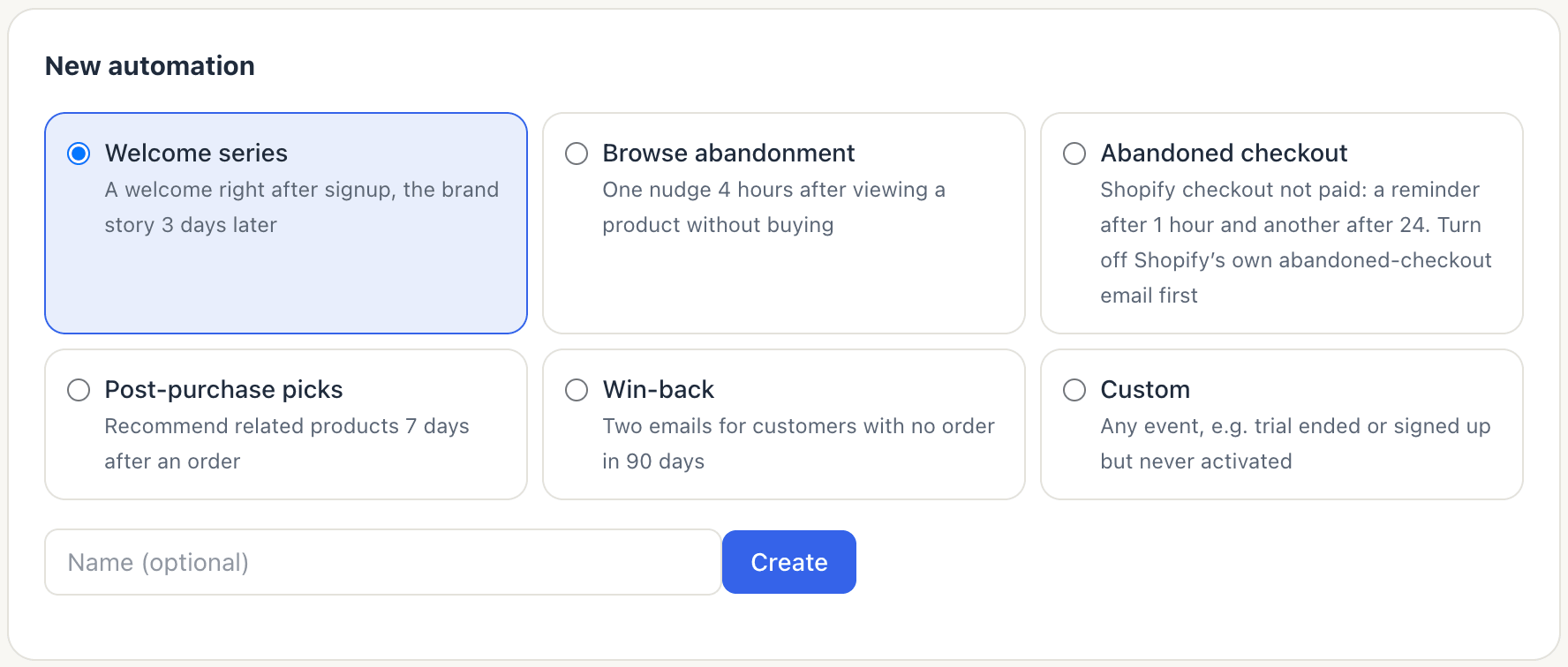
| Template | Starts when | Emails it starts with |
|---|---|---|
| Welcome series | Someone subscribes | A welcome right away, the brand story 3 days later |
| Browse abandonment | A Product Viewed event arrives | One nudge 4 hours later |
| Abandoned checkout | A Shopify checkout is left unpaid | A reminder after 1 hour, another 23 hours after that |
| Post-purchase picks | An Order Completed event arrives | Related products 7 days later |
| Win-back | A customer has had no order for 90 days | Two emails, a week apart |
| Custom | Any event you name | One email for you to write |
Every template creates real draft emails in your brand, so you can approve one almost as is or rewrite it.
2. Shape the steps
The flow page shows the steps from top to bottom: the TRIGGER, a wait, an email, another wait, the next email, and the EXIT at the end.
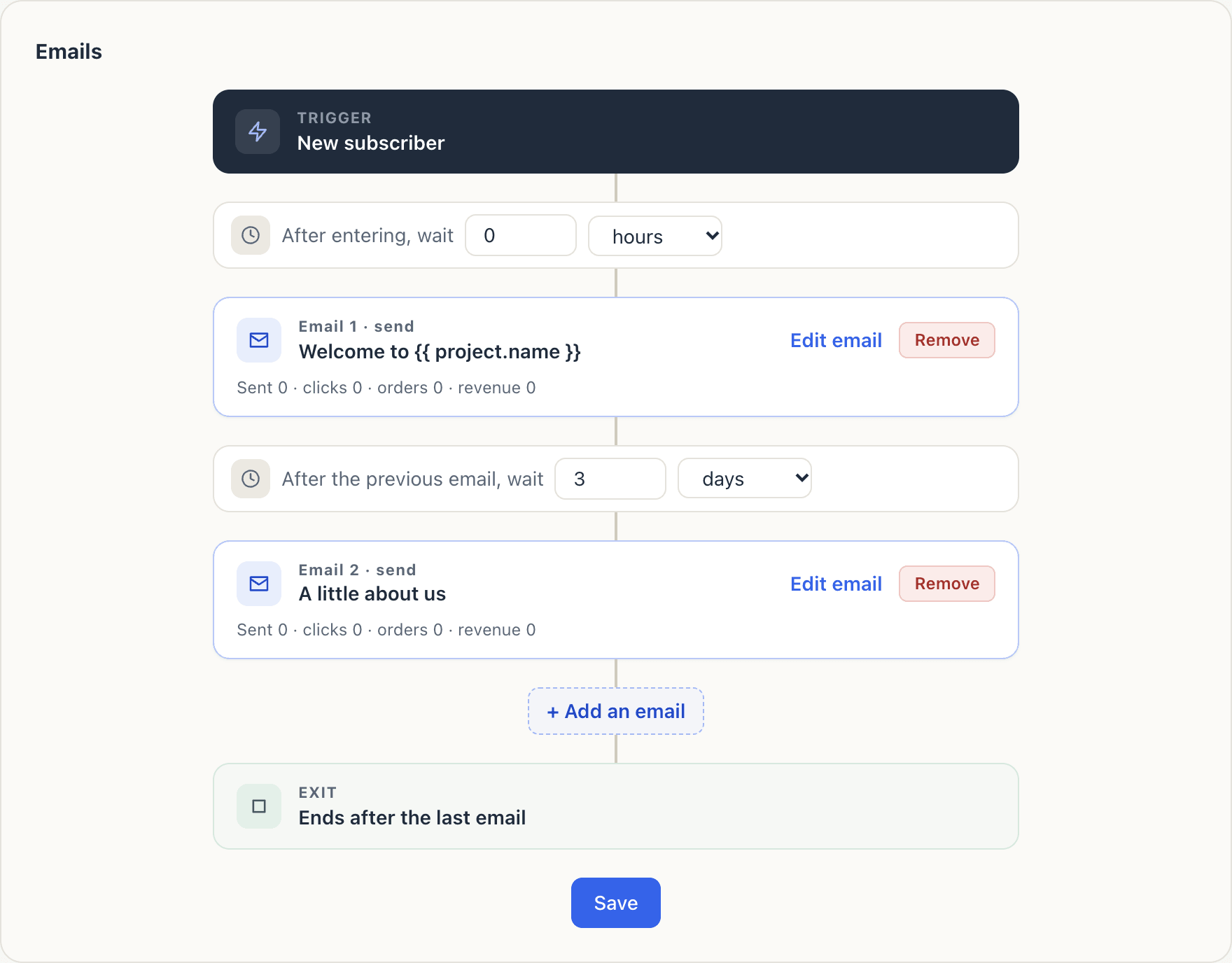
- Waits. The first wait is "After entering, wait"; each later one is "After the previous email, wait". Set them in hours or days, up to 90 days.
- Emails. Click Edit email to open the normal email editor. Remove drops a step (a flow needs at least one email). Add an email adds a step with a 24-hour wait, up to 8 emails in total.
- Click Save when you're done. Saved changes don't send to anyone until you approve them.
3. Set the trigger and rules
Further down the page, Trigger and rules holds the details:
- Trigger event for event flows, or Event that counts as activity and Days without it for win-back. Inactivity is checked hourly.
- Exit events (comma separated): if any of these happens after someone enters (an order, say), no further emails go to them. You can list up to 5. Browse abandonment exits on Order Completed, Checkout Started and Checkout Abandoned by default.
- Re-entry: Only once per person, or At least a number of days since they last entered. Nobody enters twice while they're still in the flow.
- Sender, Subscription topic and Only this segment (or All subscribers).
Only new activity counts. A welcome flow ignores contacts you imported by CSV or added by hand, and event flows skip events older than 48 hours. Importing your history never floods a flow.
Abandoned checkout: turn off Shopify's email first
Shopify sends its own abandoned-checkout email by default, and its API doesn't tell us whether that's on. If both are on, customers get two reminders. Turn Shopify's off under Marketing → Automations in Shopify admin (older stores: Settings → Checkout → Abandoned checkouts), then tick I've turned off Shopify's abandoned-checkout email on the flow. The store also has to be connected to Shopify. If you untick the box later, the flow pauses straight away.
4. Approve and go live
The Approve and go live box lists anything left to fix, such as no sender, an unverified sending domain, a missing postal address or an empty subject. When it says "All checks passed — ready to approve.", click Approve this version, then Go live.
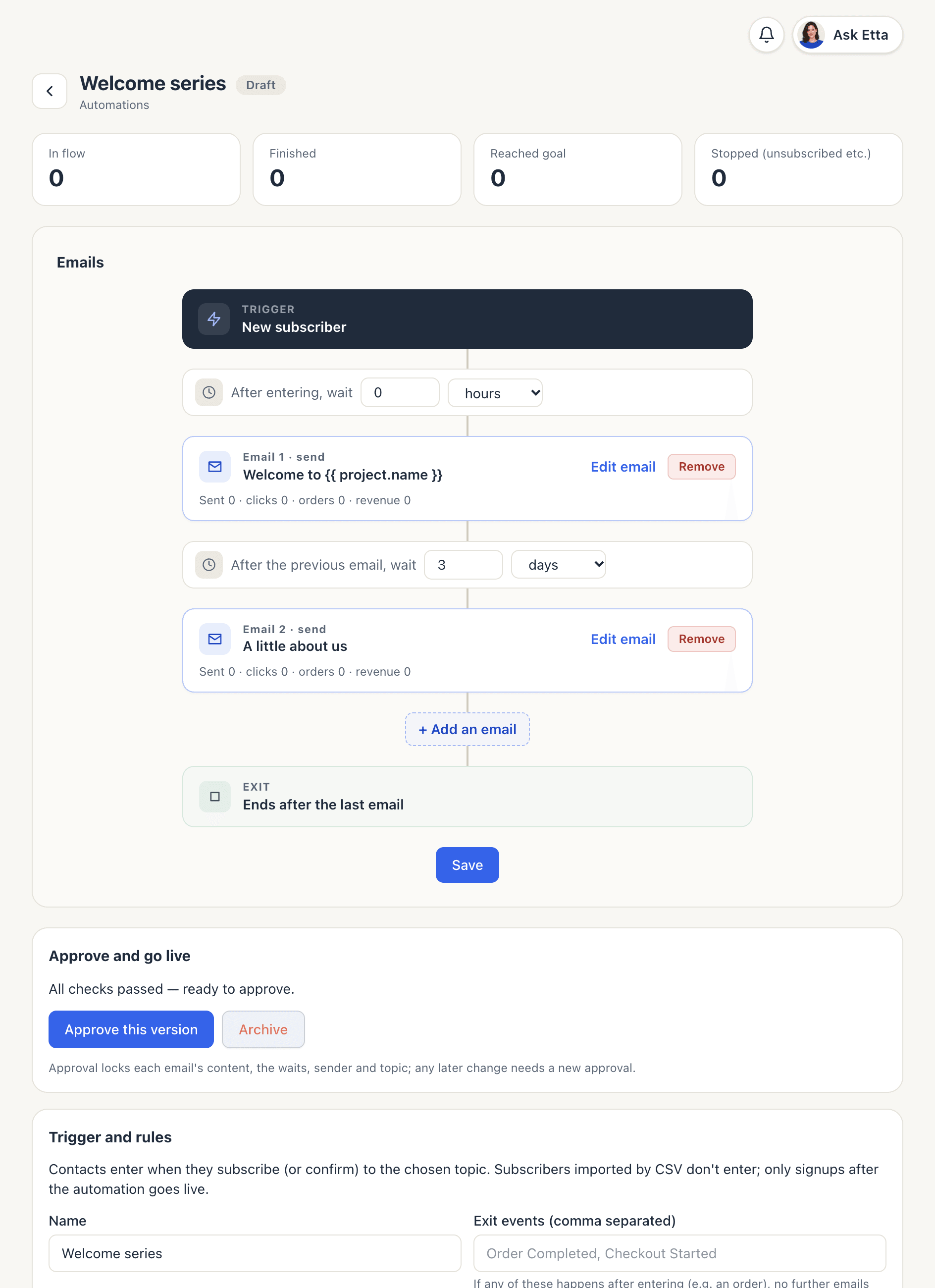
Approval locks each email's content, the waits, the sender and the topic. If you edit anything later, the live flow keeps sending the approved version until you approve again. People who entered earlier finish on the version they started with.
5. Pause, resume or archive
- Pause stops sending. People already in the flow wait where they are, and their next email goes out when you click Resume.
- Archive stops the flow for good, removes everyone still in it and cancels emails waiting in the queue. It can't be undone.
6. Read the results
The counters at the top show In flow, Finished, Reached goal (left through an exit event) and Stopped (unsubscribed etc.). Each email step shows its own line: sent, clicks, orders and revenue. Orders are counted within 7 days of a click.
Good to know
- Every flow email still goes through the usual checks: consent, suppression and your credit balance.
- Flow emails can use
{{ event.* }}fields from the trigger. Abandoned checkout offers{{ event.checkoutUrl }},{{ event.productName }},{{ event.itemCount }}and{{ event.total }}. - A paused flow doesn't pick up new triggers. Events that are more than 48 hours old by the time you resume won't start it.
FAQ
Why didn't my imported subscribers get the welcome series?
Imports and contacts added by hand count as people you already know, not new signups. Only subscriptions through a form, the API or Shopify after the flow goes live start the welcome series.
Can I change an email while the flow is live?
Yes. Edit it and save, then approve the flow again. Until you approve, the flow keeps sending the version that's live now.
Can Etta or an AI app build a flow for me?
Etta and connected AI apps can list flows and read their reports, but you create and approve flows on the Automations page yourself. See Etta.
Do flow emails cost more than campaigns?
No. Each flow email costs 2 credits, the same as a campaign email. See Credits and billing.
Looking for something else? All guides →