Make AI pictures for your emails
Generate on-brand pictures in the campaign editor, build a scene around a real product photo, see what the content check allows, and manage the project's image library.
Updated October 24, 2026
EterMail can make the pictures for your emails: an on-brand banner, a seasonal scene, or a scene built around your real product photo. Every picture is saved to the project's Images library, so you can use it again in other emails.
1. Generate a picture in the email editor
Open a campaign or a flow email and add an Image block. Under the block, click Generate with AI.
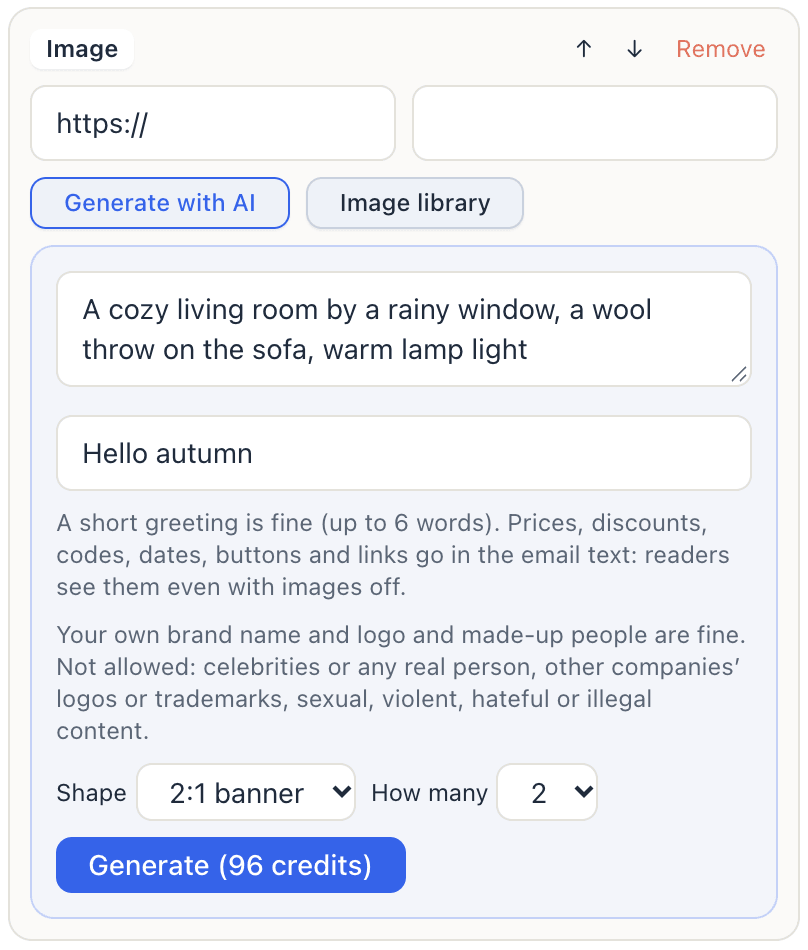
- Describe the picture: the scene, mood and style, for example "cozy tea by a snowy window, warm light, room on the left". Your brand colours are used where they suit the scene.
- Words on the picture (optional): a short greeting of up to 6 words, like "Merry Christmas". Prices, discounts, codes, dates, buttons and links can't go on a picture. Put them in the email text, where readers see them even with images turned off.
- Shape: a 2:1 banner, or 16:9, 3:2, 4:3, 1:1 or 4:5.
- How many: 1 to 4 pictures at a time.
- Product (when your store's products are synced): pick one to build the scene around its real photo. The product is kept as it is. AI only makes the scene around it and never invents a product.
Click Generate. It takes about 20–40 seconds. Click a picture to put it in the block. Its alt text is filled in for you.
2. What a picture may show
- Fine: your own brand name and logo, made-up people, products from your real photos, scenes and a short greeting.
- Not allowed: celebrities or any real person, other companies' logos or trademarks, and sexual, violent, hateful or illegal content.
Each picture gets an automatic content check after it's made. A flagged picture isn't delivered to you and isn't charged. If the check hasn't finished yet, the picture shows Checking and you can already use it. If it's flagged later, it leaves the library and can't be added to new emails.
3. What it costs
A picture costs 48 credits, or 78 credits when it's built from a product photo (1,000 credits = $1). The button shows the total before you click. You're charged only for the pictures you get: failed or flagged pictures cost nothing. See Credits and billing.
4. Use the image library
Every picture you or Etta make lands in Images in the project sidebar, newest first. In the editor, Image library under an image block lets you pick one of them.
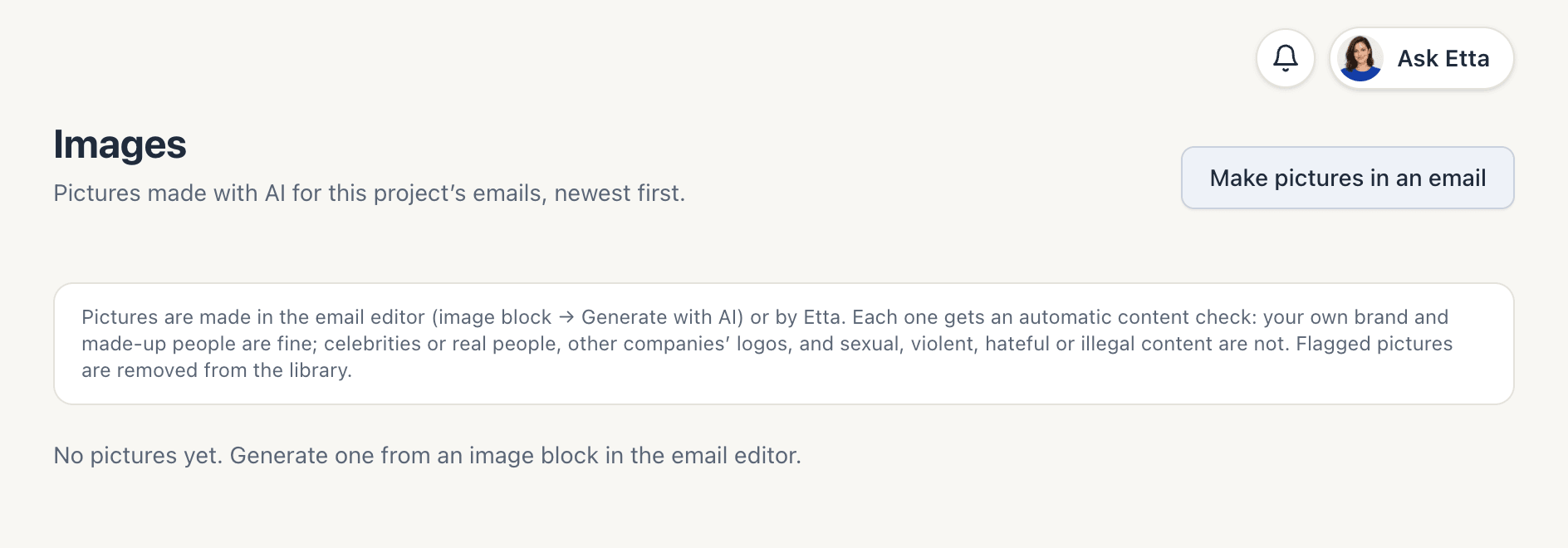
Click a picture to see it large with its description, alt text, words on the picture, who made it and when. From there you can:
- Download it,
- Copy URL to use the picture elsewhere,
- Delete it from the library.
Deleting is safe for emails you've already sent. If a sent or scheduled email (or a flow email) uses the picture, the file stays so that email keeps showing it, and only the library entry goes. Deleting needs permission to edit the project.
FAQ
Can I put "20% off" on the picture?
No. Offers, prices and calls to action belong in the email text: AI can misspell them inside a picture, and readers with images turned off would miss them. A short greeting is fine.
Can AI invent my product?
No. A product only appears when you pick it under Product, and then its real photo is used as it is.
Can Etta make pictures?
Yes. Ask Etta for a picture and it shows a card to approve first, like any change. Once you approve, the picture is made, charged the same way and saved to the library. Nothing is sent.
Looking for something else? All guides →