Build a segment to target the right contacts
Build a segment from contact fields, attributes, events and subscription status, check the live count, start from a template and send to it.
Updated October 22, 2026
A segment is a saved set of rules that picks out part of your contacts, such as "subscribers in Seattle", "bought in the last 90 days" or "spent 500 or more". Segments are live: each time you use one, EterMail works out who matches right now, so new and changed contacts are picked up automatically.
You use segments to choose a campaign's audience instead of sending to every subscriber.
1. Open Segments
Open Segments in the sidebar. You'll see your saved segments with how many people each one matches, and a row of Templates below them.
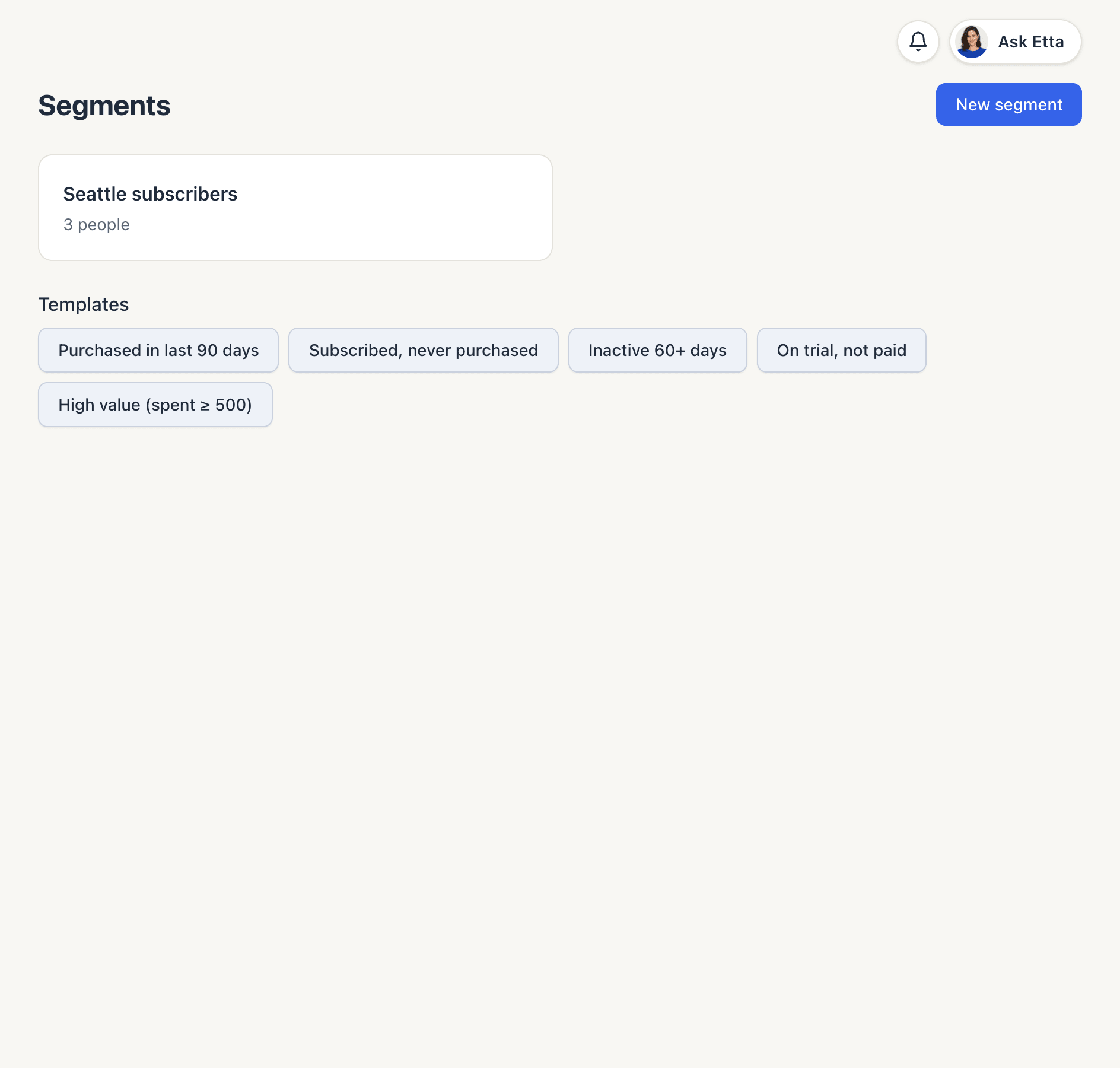
Click New segment to start from scratch, or click a template to start from it:
| Template | Starts with |
|---|---|
| Purchased in last 90 days | Last order in the last 90 days |
| Subscribed, never purchased | Subscribed to marketing and 0 orders |
| Inactive 60+ days | Last seen more than 60 days ago |
| On trial, not paid | Attribute plan is trial and no Subscription Started event |
| High value (spent ≥ 500) | Total spent of 500 or more |
Templates are just starting points. Every value can be edited before you save.
2. Name it and choose how conditions combine
Give it a Segment name, then set Match to:
- all conditions: a contact must meet every rule (AND)
- any condition: meeting one rule is enough (OR)
3. Add conditions
Use the four buttons under the conditions to add rules:
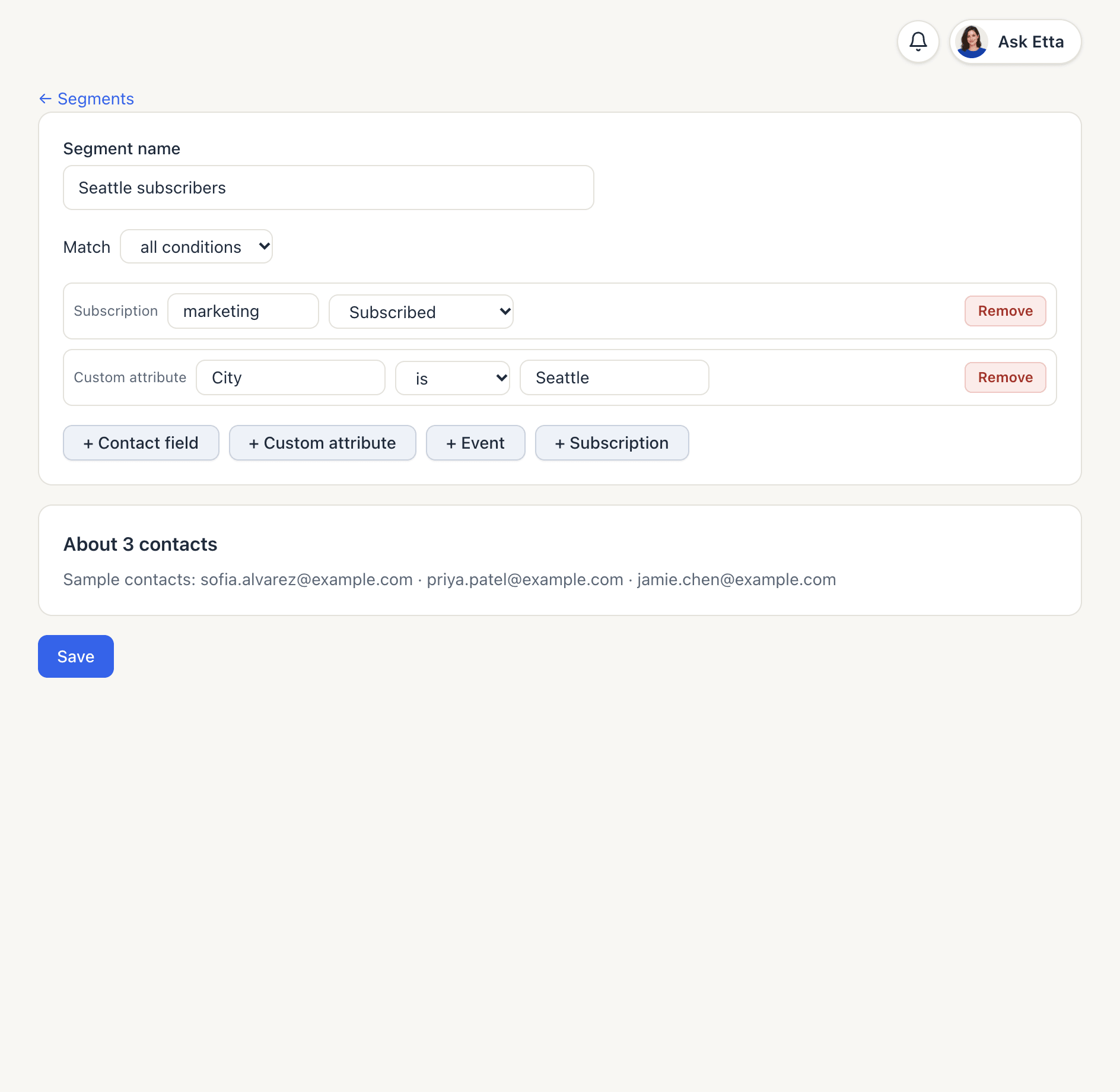
+ Contact field. Built-in fields: Email, First name, Last name, Locale, Time zone, Source, Tags, Orders, Total spent, Created, Last seen, Last order and Last click. The operators depend on the field:
- text: is, is not, contains, does not contain, starts with
- numbers: is, is not, >, ≥, <, ≤
- dates: in the last N days, more than N days ago, before, after
- tags: has tag, does not have tag
- every field except Tags also offers is set and is empty
+ Custom attribute. Anything you imported or sent as an attribute, such as City or plan. Type the attribute name, pick an operator and enter a value. Number comparisons only match attributes that hold numbers.
+ Event. Something the person did, sent from your site or app through the API or synced from your store. Choose did or did not do, enter the Event name, and optionally limit it to the last N days (Within days) or a number of Times.
+ Subscription. Subscription status for a topic (marketing is the default topic): Subscribed, Unsubscribed, Pending or Never subscribed.
Click Remove on a row to delete it. A segment can hold up to 30 conditions.
4. Check the live count
Below the conditions, About N contacts updates a moment after each change, along with a few Sample contacts. Use it to check the rules do what you expect before saving. If the count is zero, a value probably doesn't match the data exactly (for example "seattle" vs "Seattle" with is).
Click Save. Back on the Segments page, the card shows the current count.
5. Send a campaign to the segment
In a campaign, open the Audience menu and pick your segment instead of All marketing subscribers. See Create and send a campaign.
The campaign goes to people who match the segment and are subscribed to marketing. A segment can include unsubscribed or never-subscribed contacts (its count does), but they're never emailed. That's why a campaign's Recipients number can be lower than the segment's count.
Good to know
- When the list is fixed. When you approve a campaign, EterMail freezes the list of people who match at that moment. Later changes to the segment or to contacts don't add anyone to that send. Unsubscribes and suppressions are still checked again when each email goes out.
- Editing a segment changes who matches from then on. It doesn't change campaigns already approved or sent.
- Deleting a segment doesn't affect campaigns already sent. If a draft campaign was using it, check that campaign's Audience before you approve.
- Etta and AI apps can build and preview segments for you. Try "make a segment of customers who ordered twice in 90 days". See Etta and MCP.
FAQ
Do segments update automatically?
Yes. Segments store rules, not a fixed list. Every count and every campaign uses whoever matches at that moment.
Why does my campaign have fewer recipients than the segment?
Campaigns only go to contacts subscribed to marketing. Unsubscribed, never-subscribed and suppressed contacts in the segment are left out.
Can I combine AND and OR?
In the editor, one segment uses either all conditions or any condition. For an OR of several groups, create separate segments, or ask Etta to build a segment with nested groups.
Where do events come from?
From your site, app or backend through the API, and from connected stores such as Shopify. The event name in the condition must match the name you send exactly.
Looking for something else? All guides →