Create and send an email campaign
Write a campaign with blocks or an AI draft, A/B test the subject, send in each contact's time zone, and approve it with a clear credits estimate.
Updated October 24, 2026
A campaign is a one-off email (a sale, a launch, a newsletter) to all your marketing subscribers or to a segment. You write it, approve it, then send it now or schedule it.
Before you start, you need a sender on a verified sending domain (the domain also needs a DMARC record) and a postal address under Settings → Marketing settings. For AI drafts, fill in your Brand profile too.
1. Create the campaign
Open Campaigns in the sidebar. Under New campaign, enter a Campaign name and pick a layout under Choose a layout: Blank, Newsletter, Product launch, Promotion, Win-back, Announcement or Product update. Layouts use your brand kit's logo, colours and font. Templates you saved yourself appear under My templates. Click New campaign.
2. Set the sender, audience and subject
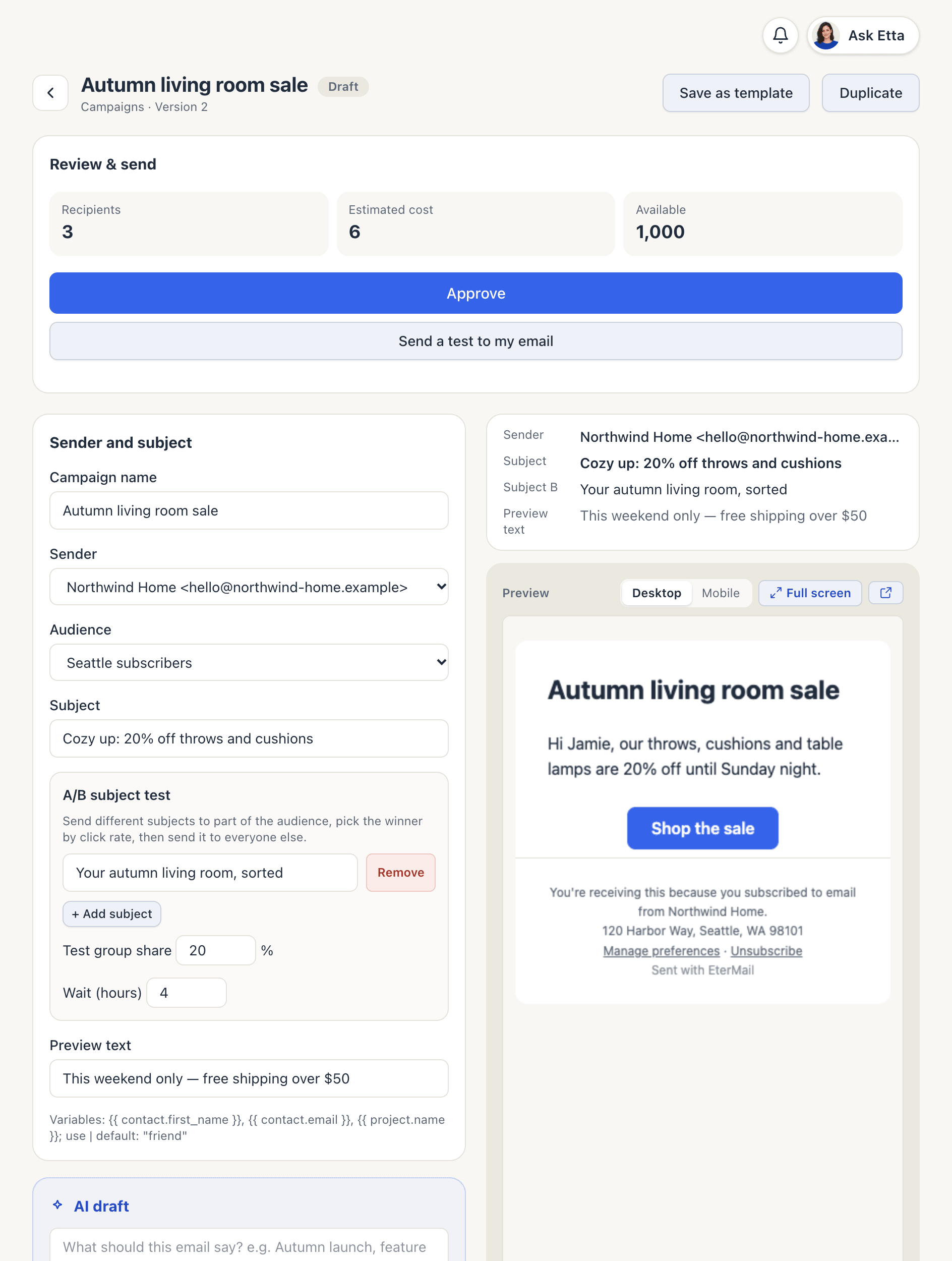
- Sender: one of your senders. If you have none, use Add a sender (new tab), then Done, refresh.
- Audience: All marketing subscribers or one of your segments. Only subscribed contacts are ever included.
- Subject and Preview text: use variables like
{{ contact.first_name | default: "friend" }}for personal touches.
3. Draft with AI, or write it yourself
Under AI draft, describe the email ("Autumn sale, 20% off throws and cushions until Sunday"), choose the AI model (Fast for everyday use, Pro for complex tasks at a higher credit cost) and click Draft. The AI uses only your Brand profile and synced products. It doesn't make up prices, and it mentions offers only if your Offer rules allow them. The message after drafting shows how many credits it used. Subject ideas suggests alternative subjects. Review it, then click Save draft.
4. Build the content with blocks
The Content card is a stack of blocks. Add them from the bar at the bottom, and reorder or remove them with the arrows and Remove.
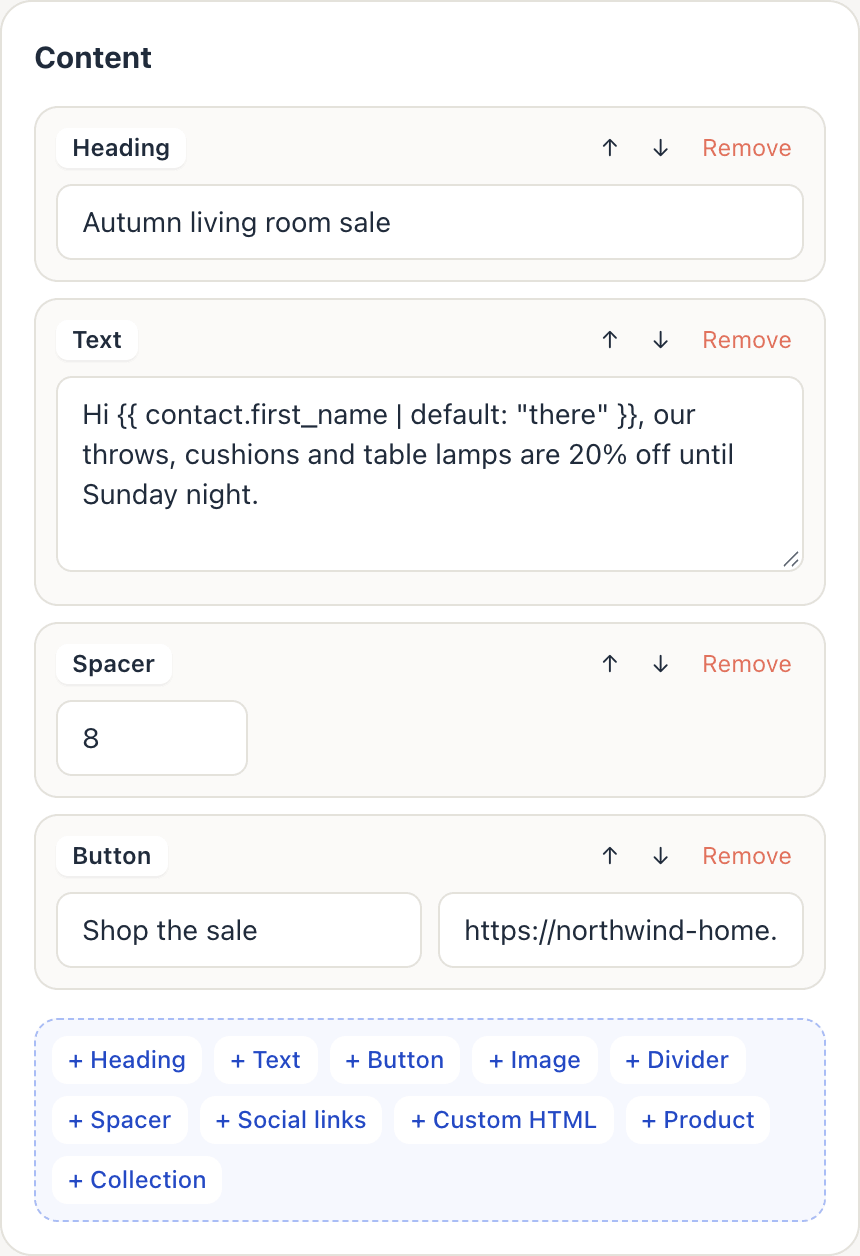
- Heading, Text, Button (text and link), Divider, Spacer, Social links
- Image: an https image URL plus alt text. Or click Generate with AI under the block to make an on-brand picture (48 credits each), or pick one from the Image library. See AI pictures for emails.
- Product: search your synced products. The price, image and link are captured when you save the draft.
- Collection: a synced Shopify collection's in-stock products and a "Shop the collection" button
- Custom HTML: a section pasted from another tool (scripts, forms and style tags are removed)
If a product's price, stock or image changes in your store after you save, Product details changed appears with an Update product details button.
EterMail always adds the footer with your postal address and Unsubscribe link. Check the result under Desktop, Mobile or Full screen.
5. Optional: A/B test the subject
Under A/B subject test, click + Add subject. You can test up to three subjects in total.
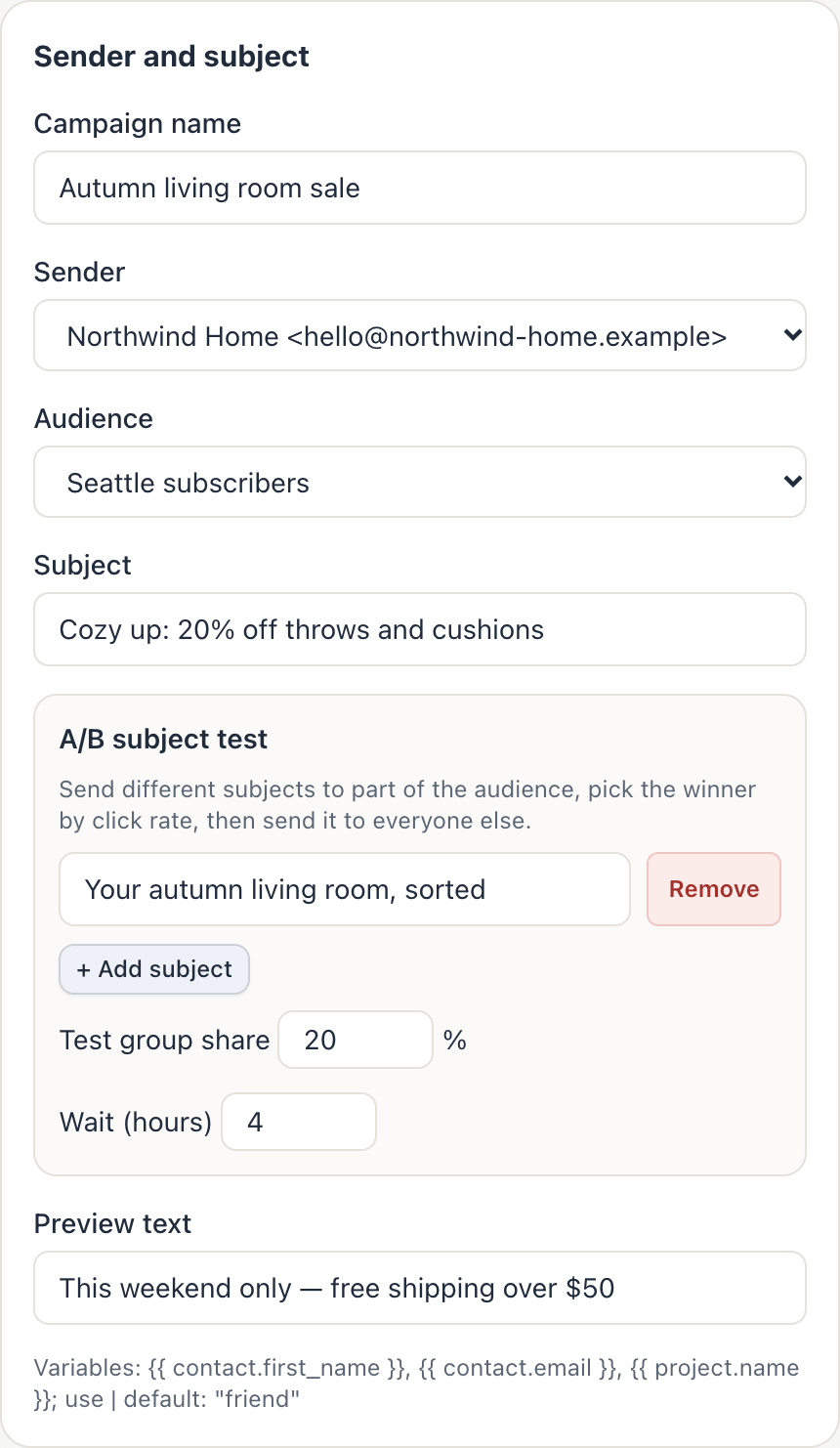
- Test group share (10–50%) of the audience is split between the subjects and gets the email first.
- After Wait (hours) (1–48), the subject with the best click rate in the test group wins. A tie, or no clicks at all, keeps the main subject.
- Everyone else gets the winning subject.
6. Review, test and approve
Review & send shows Recipients, Estimated cost and Available credits.
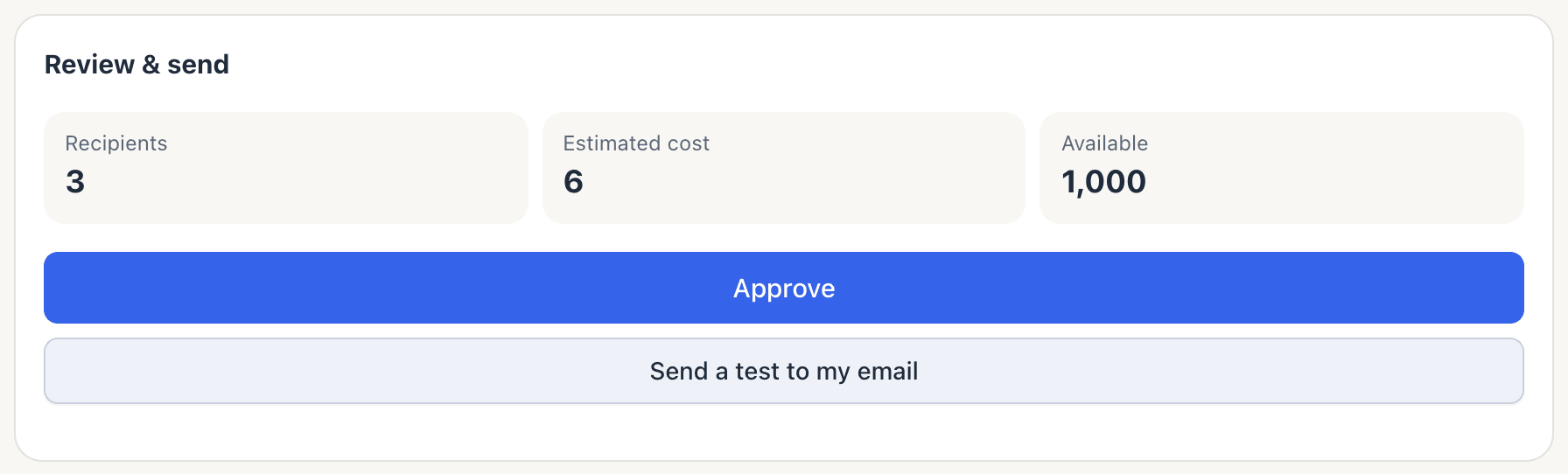
Marketing email costs 2 credits each (1,000 credits = $1), so 3 recipients cost 6. See Pricing.
Anything that blocks sending is listed under To fix: an unverified sending domain, a missing postal address, empty content, no eligible recipients, not enough credits and so on.
Send a test to my email sends the saved version to your login address with "[TEST]" in the subject, charged like any email.
Then click Approve. Every campaign needs approval, from an owner, an admin or a member with Can approve sends. Approval locks in that version, its sender and A/B settings, and the list of people it goes to. If you change and save anything afterwards, the approval is voided and the campaign goes back to Draft until someone approves it again.
7. Send now or schedule
After approval, choose Send now or Schedule (up to 90 days ahead), then click Confirm send.
Tick In each recipient's time zone to deliver at that clock time wherever each contact lives. Contacts without a known time zone get your project's time. If that time has already passed for someone, they get it right away. You can't combine this with an A/B test, because the test group has to go out together.
One marketing email per person per 24 hours. If some recipients already got a campaign in the last 24 hours, EterMail asks whether to Send to them later (once the limit clears) or Skip them. You can remember the choice under Settings → Marketing settings → Frequency.
While it's sending you can Pause, Resume or Cancel campaign. Emails already sent can't be recalled.
Good to know
- Consent is checked again at send time. Anyone who unsubscribes, bounces or complains after you approve is skipped, and skipped people cost nothing.
- Credits are charged only for emails actually sent. If credits run out mid-send, the campaign pauses until you top up.
- New accounts ramp up. On your first day of sending, up to 2,000 emails go out per 24 hours. The limit doubles each day and disappears after 7 days. Emails over the limit wait and go out automatically.
FAQ
Can Etta or an AI app send a campaign for me?
They can draft and set it up, but sending waits for your approval by default. You get an approval link showing the recipients and credits. See MCP.
Can I edit a campaign after approving it?
Yes, until it starts sending. Saving a change voids the approval, so it needs approving again. Once it's sending, the content is locked.
How is the A/B winner chosen?
By unique click rate in the test group after the wait. Open rates aren’t used.
Why are recipients fewer than my segment's count?
Only contacts subscribed to marketing are included. Unsubscribed and suppressed people are left out.
Looking for something else? All guides →