Send cold outreach from your own mailboxes
Get cold email enabled, connect Google Workspace, Microsoft 365 or SMTP mailboxes on separate domains, and run sequences that stop on reply.
Updated October 24, 2026
Cold outreach lets you email businesses that haven't subscribed to you, from real mailboxes you own. EterMail schedules the sends, keeps each mailbox within safe limits and stops the moment someone replies.
Outreach is kept apart from marketing email, with its own domains, mailboxes and prospect lists, so it can't hurt your marketing domain's reputation. More background: cold email software.
1. Request access
Cold email is switched on for each workspace after a short review. Go to Settings → Outreach settings → Access. Under Tell us about it, describe the purpose, where your list comes from and the expected volume, then click Request access. Only an owner or admin can send the request, and we usually reply within one business day.
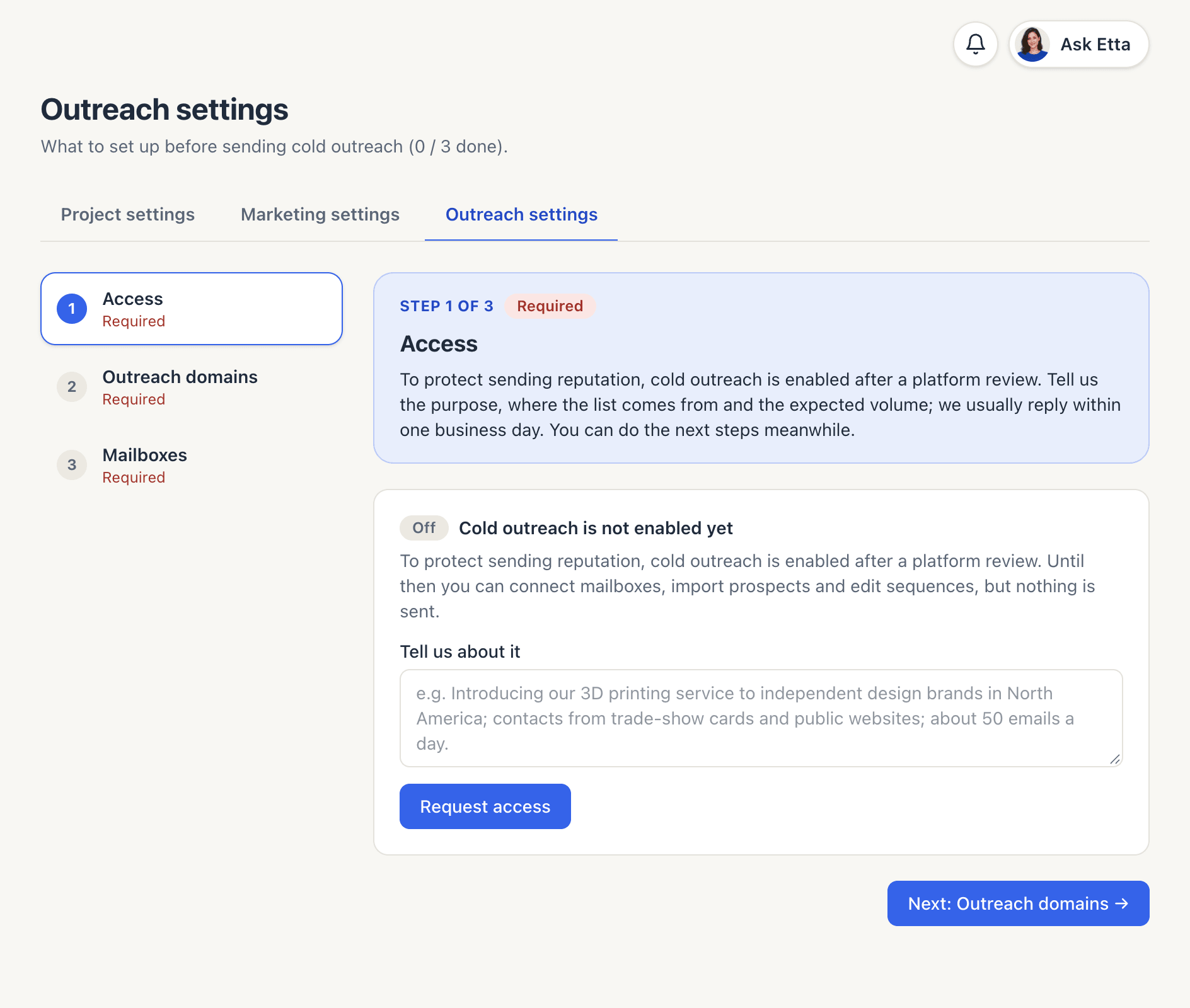
Meanwhile you can connect mailboxes, import prospects and write sequences. Nothing is sent until cold email is enabled.
2. Set up separate domains and mailboxes
Never send cold email from your main domain. The No mailboxes yet? Get set up in 4 steps guide in Outreach settings (on the Outreach domains and Mailboxes steps) does the planning for you. Enter how many cold emails a day you want, and it tells you how many domains and mailboxes you need and how long the ramp-up takes.
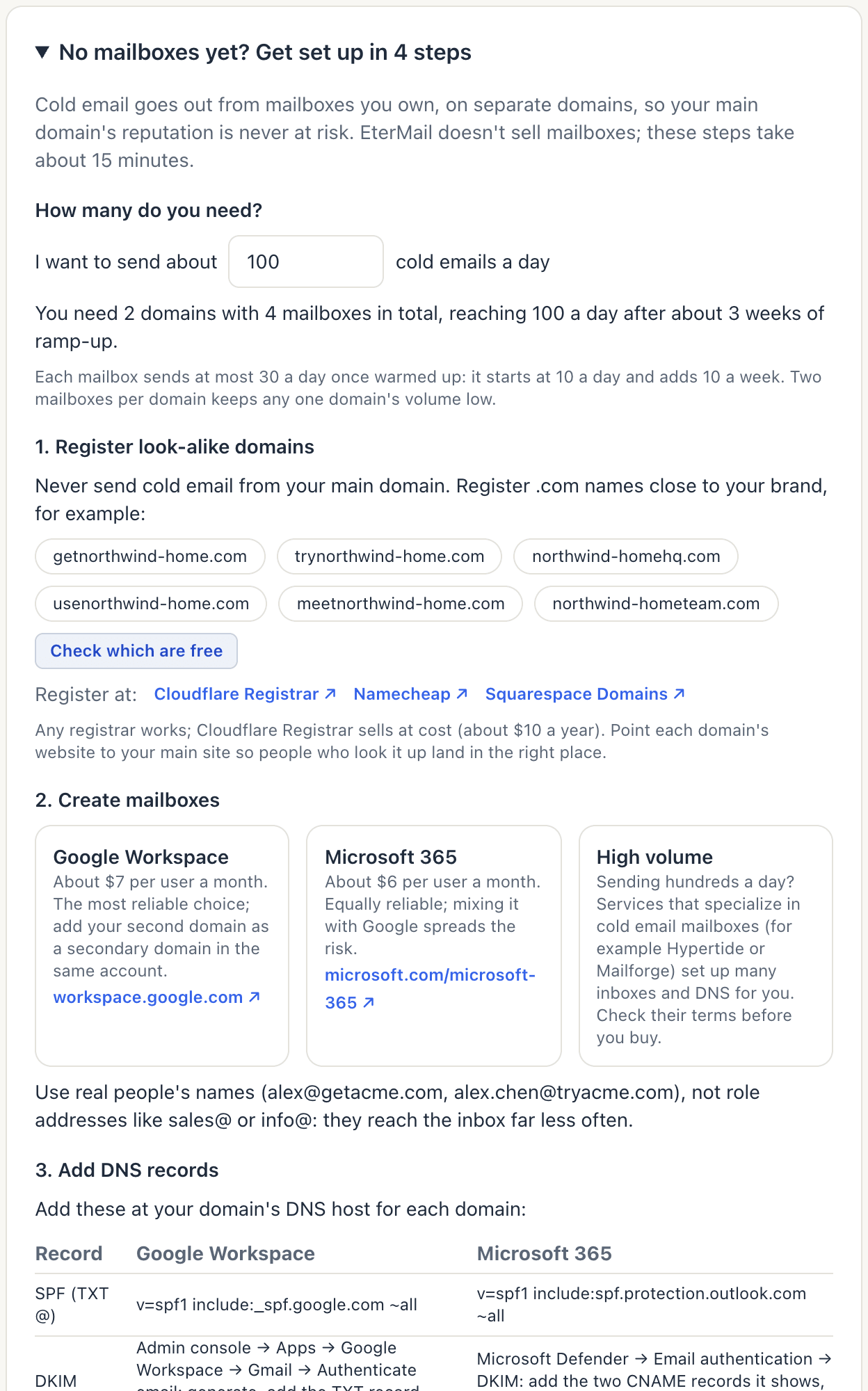
- Register look-alike domains at any registrar.
- Create mailboxes on Google Workspace or Microsoft 365, or use a cold email mailbox provider for high volume. Use real people's names, not sales@ or info@. EterMail doesn't sell mailboxes.
- Add DNS records, then add each domain under Outreach domains. EterMail checks MX, SPF, DKIM and DMARC and lists what's missing. Public domains like gmail.com aren't accepted.
- Connect the mailboxes (next step).
3. Connect mailboxes
In Connect mailbox, choose a Provider: Google Workspace, Microsoft 365 or Other (enter servers). For Google and Microsoft, the SMTP and IMAP servers are filled in for you. Enter the Email, Sender name and Password / app password, then click Connect mailbox.
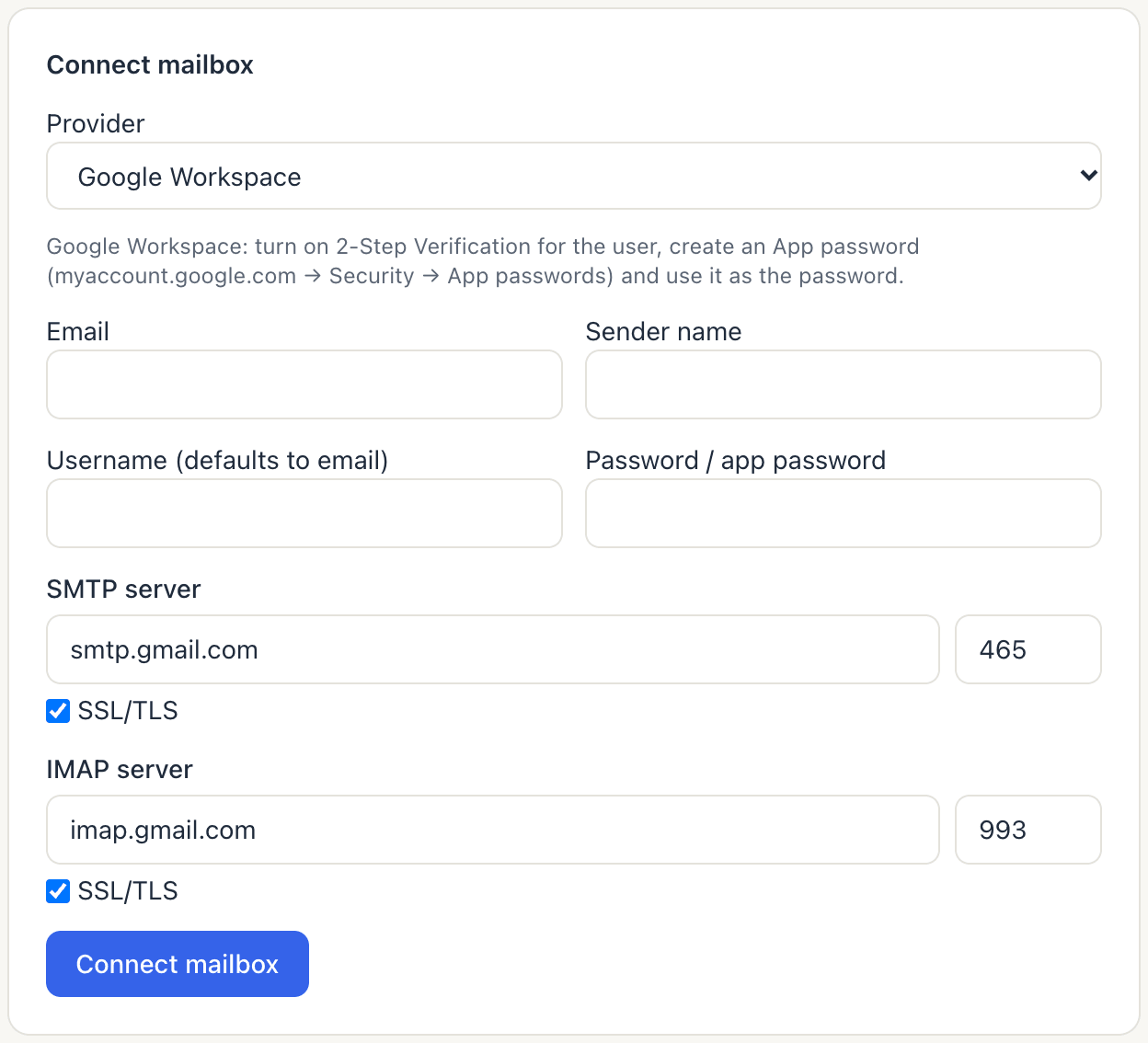
- Google Workspace: turn on 2-Step Verification for the user, create an App password and use it as the password.
- Microsoft 365: an admin turns on Authenticated SMTP for the mailbox first. Then use the mailbox password.
- You can also sign in with Connect with Google Workspace or Connect with Microsoft 365, or use Import mailboxes (CSV) for up to 500 at once.
Your plan sets how many mailboxes you can connect (see pricing).
4. Check each mailbox's ramp and limits
New mailboxes warm up slowly. By default, a mailbox sends up to 10 emails a day in its first week and adds 10 a day each week. Once it's warmed up, it sends at most 30 a day. Each mailbox card shows where it is, for example "Ramp week 2: up to 20 today".
Under Sending settings you can change the Daily cap (up to 200), Week-1 daily, Weekly increase, Send window (09:00–17:00, Monday to Friday by default), Time zone, Min gap (sec) (180 by default, randomised) and Signature.
EterMail also watches each mailbox's bounces over the last 7 days. From 2%, the ramp holds and today's limit is halved. At 3%, the mailbox pauses itself. It also pauses if its domain lands on a blacklist. Your sequences keep sending from your other mailboxes.
5. Import prospects
Under Cold outreach → Prospects, click Import prospects. Name the list, then fill in Source (where the list came from) and Basis for contact (why it's appropriate to contact these businesses, B2B only), and upload a CSV with an email column. Duplicates, invalid, opted-out and suppressed addresses are skipped, and the rest are checked and marked Valid, Risky or Invalid.
Import from contacts turns contacts who never subscribed or unsubscribed into prospects. People who unsubscribed are never imported.
6. Write and start a sequence
Under Cold outreach → Sequences, click New sequence.
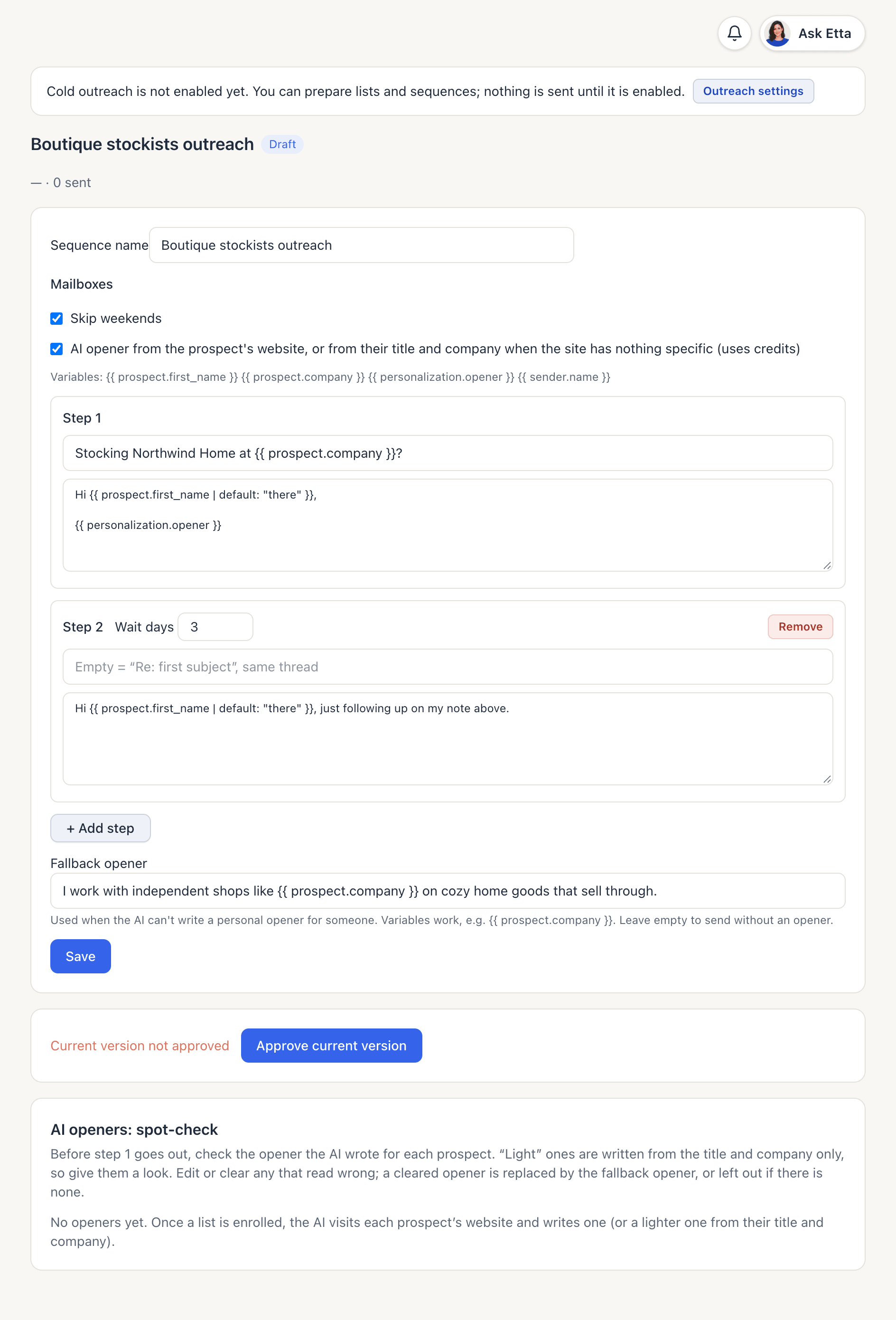
- Tick the Mailboxes to send from. The sequence rotates across them.
- Write up to 6 steps. Step 1 needs a subject. If you leave a follow-up's subject empty, it goes out as "Re: first subject" in the same thread. Set Wait days between steps.
- Use variables like
{{ prospect.first_name }}and{{ prospect.company }}. For a personal first line, tick AI opener from the prospect's website, or from their title and company when the site has nothing specific (uses credits), put{{ personalization.opener }}in the email and fill in a Fallback opener (see below). - Click Save, then Approve current version.
- Under Add list, pick a list and click Enroll, then click Start sending.
Each email ends with your signature, postal address and an opt-out line.
7. AI openers and the spot-check
With the AI opener option ticked, each enrolled prospect's opener is written in up to three steps:
- Personal: the AI reads the prospect's own company website and writes one or two sentences around one specific fact it found there, such as a product line or a market they sell in. It never invents results, numbers or plans, doesn't flatter and doesn't pitch your product.
- Light: if the site has nothing specific (or can't be read), the AI writes one light sentence from the prospect's title and company only. It claims nothing about the company.
- Fallback: if neither works, the sequence's Fallback opener is used. Variables work there too, for example "I work with teams like
{{ prospect.company }}on getting orders out faster." Leave it empty to send without an opener. The fallback opener is part of the approved sequence, so changing it needs a new approval.
Before step 1 goes out, AI openers: spot-check on the sequence page lists every prospect's opener with a label: Personal, Light (from title/company), Fallback (sequence default) or Edited. Light ones are highlighted because they're a guess from the role, so give them a quick look. Click Edit to rewrite an opener, or Clear to drop it: a cleared opener is replaced by the fallback opener, or left out if there is none. Once step 1 has gone out, its opener can't be changed.
Each opener is a small AI request that uses credits. If credits run out, the remaining prospects get the fallback opener.
Good to know
- Stops automatically. When a prospect replies, all their remaining steps stop. Bounces and opt-outs stop them too, and the address is suppressed. Out-of-office replies push the next step back once.
- Credits. Each cold email costs 5 credits, and so does a reply you send in a cold email thread. On the Ultra plan, cold email isn't charged per send. AI openers and reply drafts use credits on every plan. See Credits and billing.
- Replies show up under Replies and in the Inbox.
FAQ
Why can't I approve or start my sequence?
Approving, enrolling and starting all need cold email to be enabled for your workspace, at least one mailbox ticked and a postal address in project settings.
Can I raise a mailbox above 30 a day?
Yes, up to 200 under Sending settings, but adding mailboxes is the safer way to grow.
Is cold email free on Ultra?
Ultra doesn't charge per cold email. Volume is still limited by your mailbox count and each mailbox's daily limit, and AI features still use credits.
Can Etta start a sequence for me?
Etta can draft a sequence and enroll a list, but each of those waits for your approval on a card. Connecting mailboxes is something only you can do. See Etta.
Looking for something else? All guides →