Add and verify your sending domain
Add a sending domain to EterMail, publish its SPF, DKIM and DMARC records, verify it, and set up the sender names and addresses your campaigns use.
Updated October 22, 2026
Marketing email in EterMail always goes out from a domain you own and have verified. Verification proves to Gmail, Outlook and other mailbox providers that you're allowed to send as that domain. That's a big part of whether your email reaches the inbox.
Until a domain is verified, nothing can send from it: campaigns show Sending domain not verified under To fix and can't be approved, flows can't go live, and test sends are blocked too. Setup takes a few minutes of work at your DNS provider, plus whatever time the records take to take effect.
1. Open Marketing settings
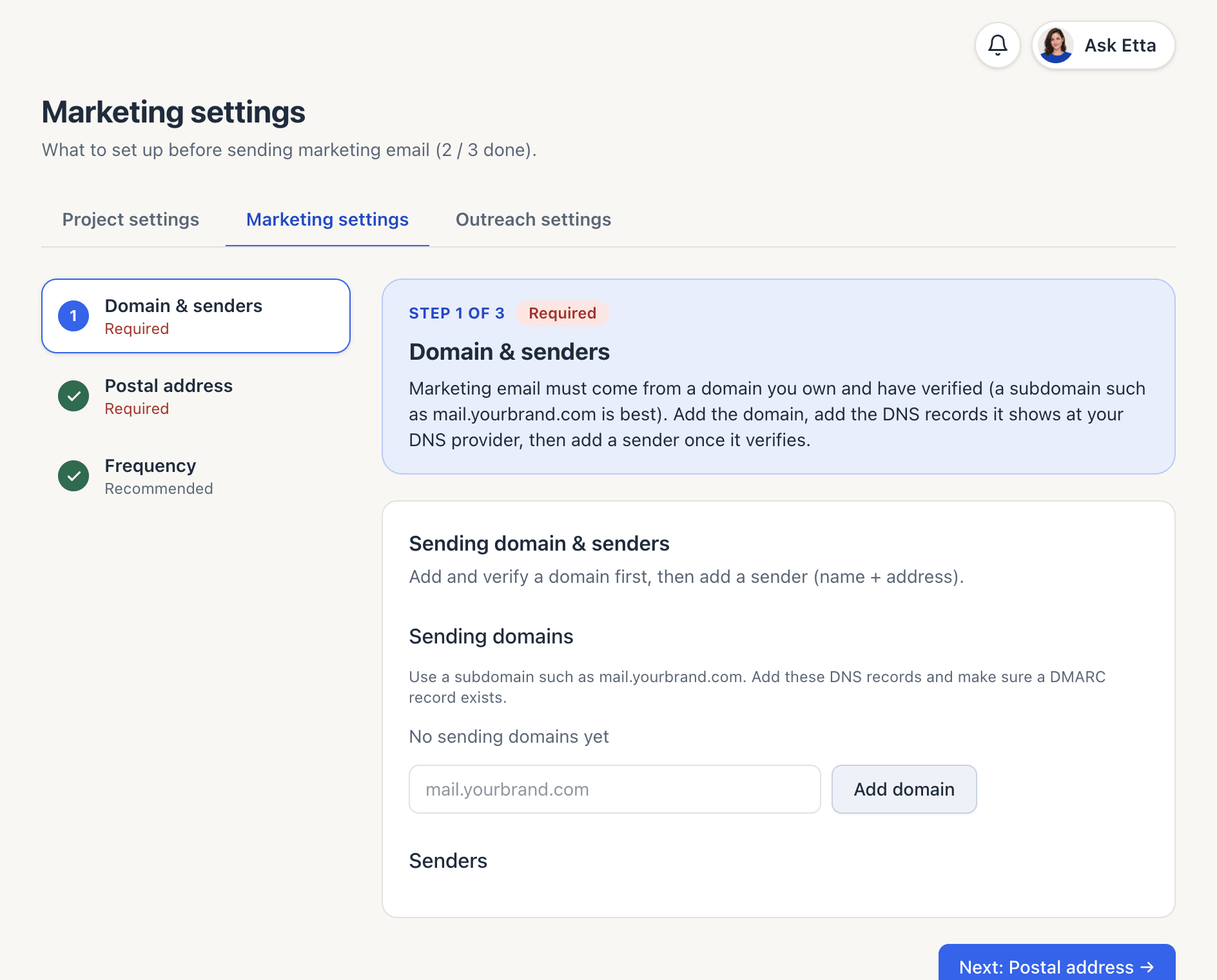
In the sidebar, under Settings, open Marketing settings. It lists three steps you need before sending marketing email: Domain & senders (required), Postal address (required) and Frequency (recommended). Start with Domain & senders.
2. Add your domain
Type the domain into the box and click Add domain.
Use a subdomain such as mail.yourbrand.com or news.yourbrand.com, not your main domain. That keeps your marketing reputation separate from the mail your team sends day to day.
You can't use a free mailbox domain such as gmail.com, outlook.com, yahoo.com or qq.com. Those providers' own DMARC policies reject mail sent in their name from other services.
3. Add the DNS records
Once you add it, the domain shows as Pending with a table of records: Type, Name, Value and Status. You'll usually see an MX record and an SPF (TXT) record on a send. host under your domain, plus a DKIM (TXT) record ending in ._domainkey.
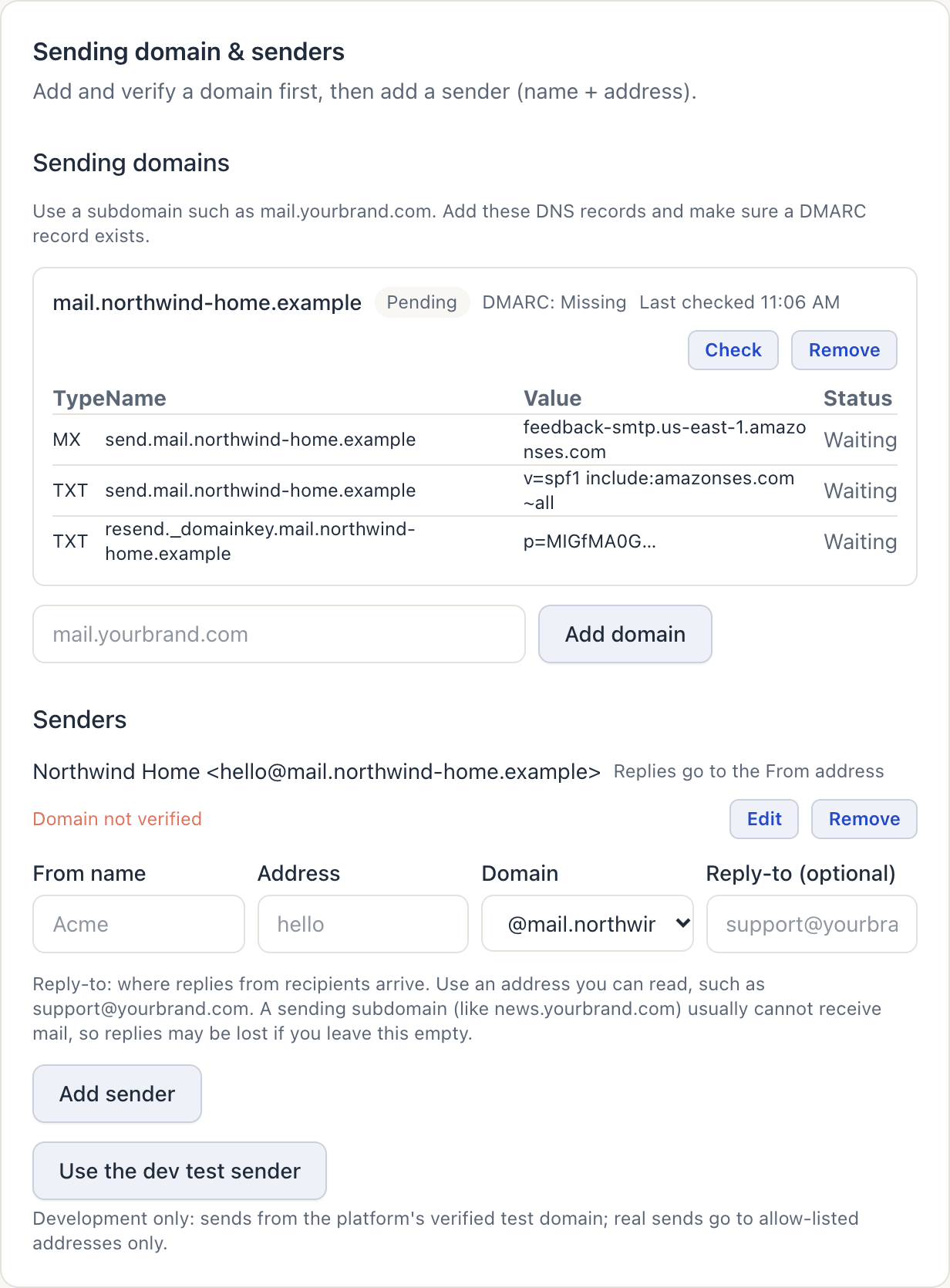
Sign in to wherever your domain's DNS is managed (your registrar, Cloudflare, Shopify domains and so on) and add each record exactly as shown. Copy the values. Don't retype them.
4. Make sure a DMARC record exists
EterMail also checks for a DMARC record, shown as DMARC: OK or DMARC: Missing next to the domain. It looks for a TXT record starting with v=DMARC1 at _dmarc. plus your sending domain, and if there isn't one there, at _dmarc. plus your main domain. If yourbrand.com already has a DMARC record, a subdomain like mail.yourbrand.com is covered.
If you have no DMARC record at all, add a TXT record named _dmarc on your main domain. v=DMARC1; p=none is a common starting point that you can tighten later.
5. Click Check
Back in EterMail, click Check. Each record's status changes from Waiting to Verified once the email provider sees it, and the time of the last check appears next to the domain.
The domain becomes Verified only when both of these are true:
- the provider has confirmed the records, and
- a DMARC record exists.
If it's still pending, wait and click Check again. Records usually take effect within a few minutes to an hour of being added.
6. Add a sender
A sender is the name and address people see in their inbox. Under Senders, fill in:
| Field | What to enter |
|---|---|
| From name | Your brand or a person, e.g. "Northwind Home" |
| Address | The part before the @, e.g. hello |
| Domain | Your sending domain |
| Reply-to (optional) | An address you actually read, e.g. [email protected] |
Click Add sender. A sender shows Ready once its domain is verified, or Domain not verified until then. You can add a sender before the domain verifies.
To change a sender, click Edit. You can change the name and reply-to, and mail sent from then on uses the new values. The address can't change: add a new sender, switch your campaigns and flows to it, then remove the old one.
7. Finish the other steps
Click Next: Postal address and enter your company's postal address. Anti-spam laws require it in every marketing email footer, and campaigns can't send without it. Then review Frequency. Each contact gets at most one marketing email per 24 hours, and this setting decides whether people who've hit that limit get a campaign later or are skipped.
Troubleshooting
- The records say Verified but the domain is still Pending. Check the DMARC line. A missing DMARC record keeps the domain pending.
- A record says Failed. Compare the name and value with your DNS provider character by character, and check that you didn't add your domain twice to the name.
- I can't remove a sender or domain. A draft, scheduled, sending or paused campaign, or a flow that isn't archived, still uses it. Switch those to another sender first.
- "Please check your input and try again" when adding a domain. The domain is malformed or is a free mailbox domain.
FAQ
How long does verification take?
Often a few minutes, sometimes up to an hour after you add the records, depending on your DNS provider. Click Check to look again.
Can I send from my Gmail or Outlook address?
No. Marketing email has to come from a domain you control, so add a domain or subdomain you own.
Do signup form confirmation emails use my domain?
Yes, once a domain is verified. Double opt-in emails come from your first sender on a verified domain. Until then they come from EterMail's own address. See Create a signup form.
Should cold outreach use the same domain?
No. Cold email uses separate domains and your own mailboxes, so complaints about cold email never affect marketing delivery. See Cold outreach.
What's next?
Looking for something else? All guides →