Import contacts from a CSV file
Upload a CSV, map its columns, record where marketing consent came from, and see what happens to invalid, duplicate and unsubscribed rows.
Updated October 22, 2026
If you already have a customer or subscriber list in a spreadsheet, another email tool or your store's export, you can bring it into EterMail as a CSV file. You choose which column goes where, and you decide whether the people in the file are only stored as contacts or also subscribed to marketing email.
That choice matters. Only subscribed contacts receive campaigns and flows, so EterMail asks you to say where their consent came from and keeps that statement as evidence.
1. Open the import page
Open Contacts in the sidebar and click Import CSV.
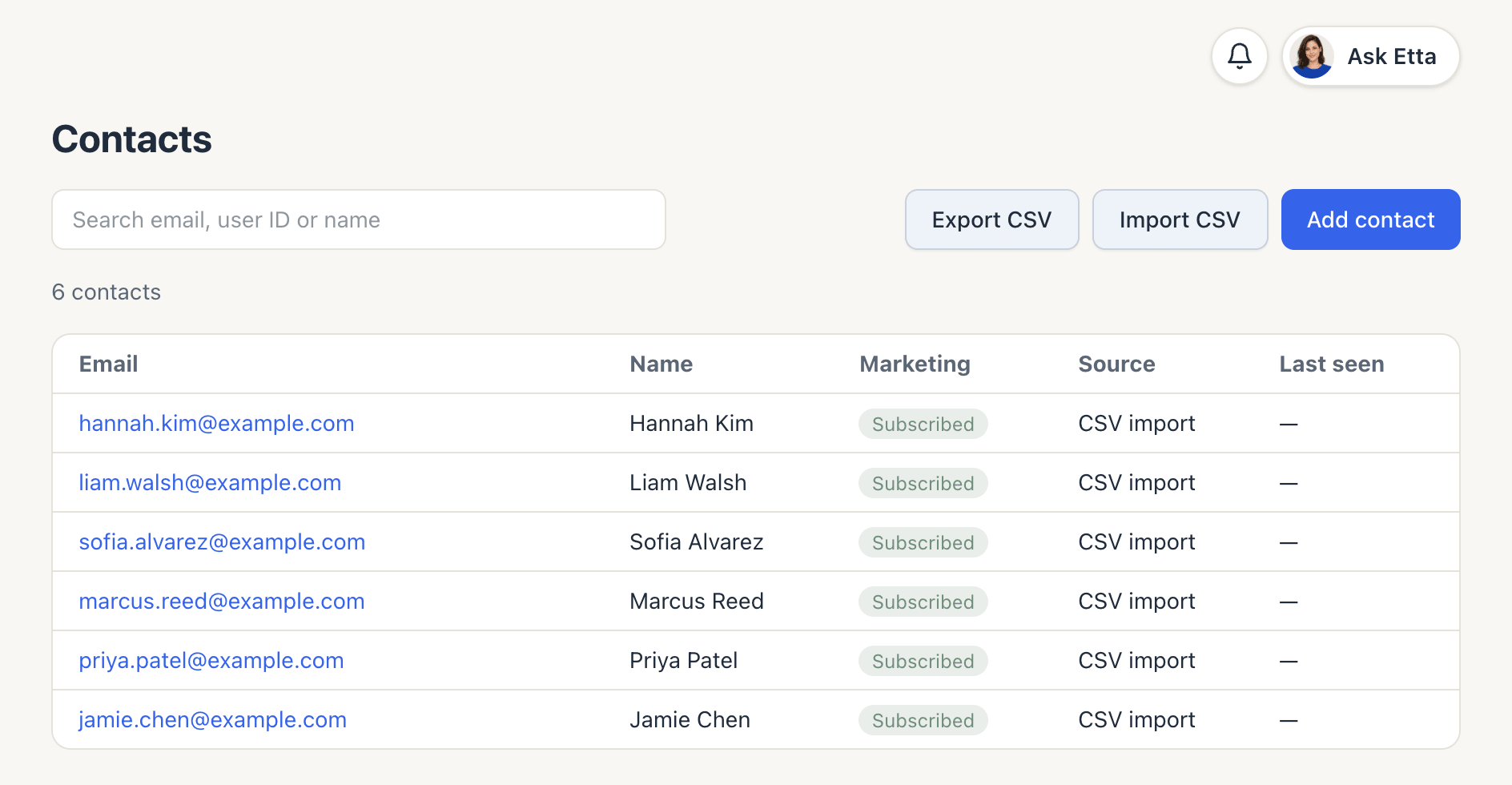
Your file needs:
- UTF-8 encoding (most spreadsheet apps offer "CSV UTF-8" when saving)
- column names in the first row
- at most 20 MB and 200,000 rows
2. Upload and map the columns
Drop the file onto CSV file or click to pick it. EterMail reads the first few rows and shows a Column mapping table: each CSV column, what it Maps to, and a Preview of its values.
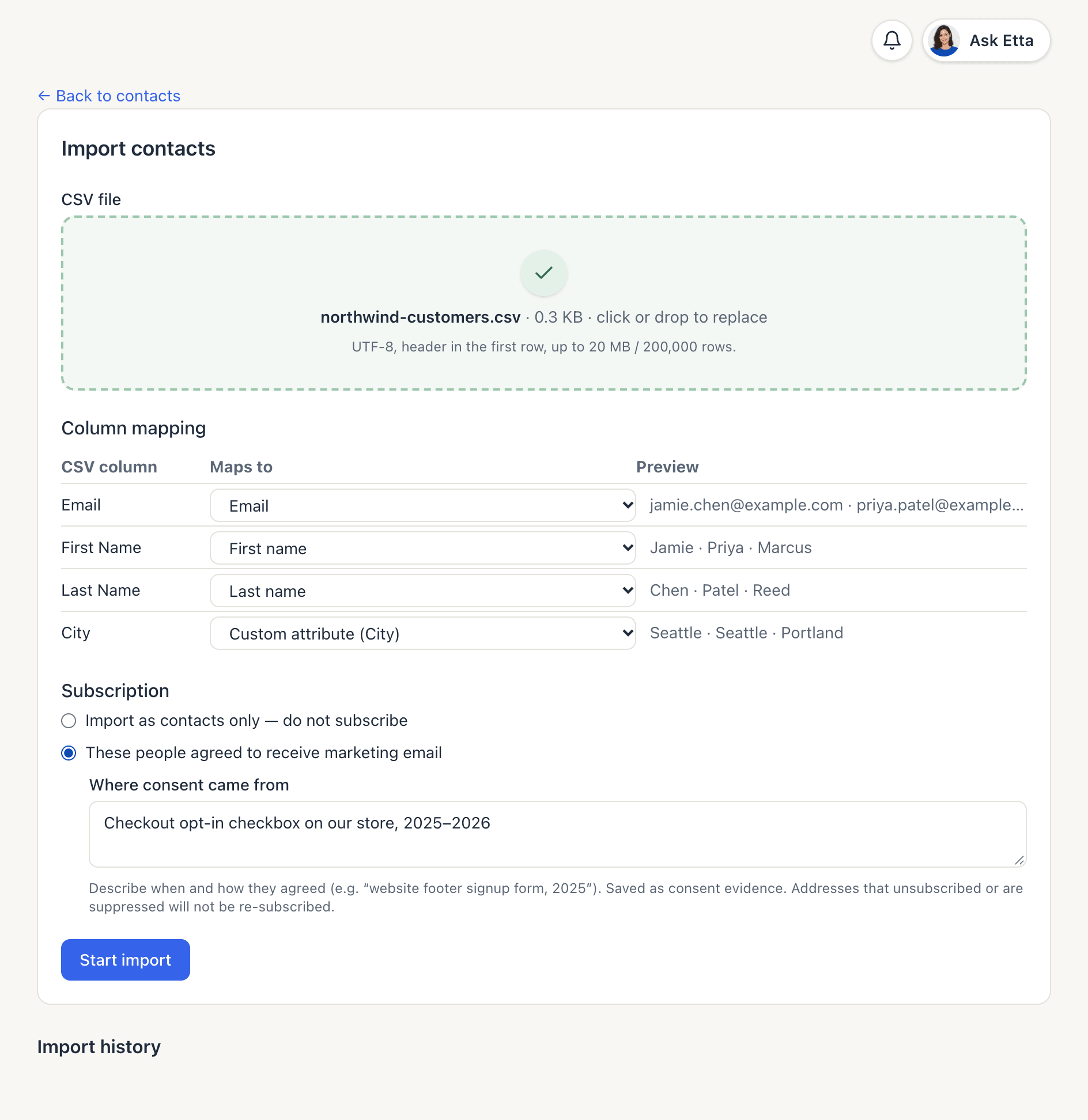
Common headers like "Email", "First Name" or "User ID" are matched for you. For each column you can choose:
| Maps to | Use it for |
|---|---|
| Email, User ID | Identifying the person. You need at least one of these. |
| First name, Last name | Personalising emails, e.g. {{ contact.first_name }} |
| Tags | Several tags in one cell, separated by commas, semicolons or vertical bars |
| Custom attribute | Anything else (city, plan, birthday month), stored under the column's name |
| Skip | Columns you don't want to import |
Any column EterMail doesn't recognise becomes a Custom attribute, so set the ones you don't need to Skip. Custom attributes can be used in segments.
3. Choose the subscription status
Under Subscription, pick one:
- Import as contacts only — do not subscribe. People are stored, but they get no marketing email. Use this for lists where you don't have marketing consent, such as past buyers who never opted in.
- These people agreed to receive marketing email. Everyone in the file is subscribed to marketing. This option needs an Email column.
If you subscribe them, fill in Where consent came from: when and how they agreed, for example "Checkout opt-in checkbox on our store, 2025–2026". Write at least 10 characters. Start import stays greyed out until you do. The text is saved with each contact as consent evidence.
4. Start the import and read the summary
Click Start import. The import runs in the background and appears under Import history with its status (Queued, Processing, Completed or Failed) and progress in rows.
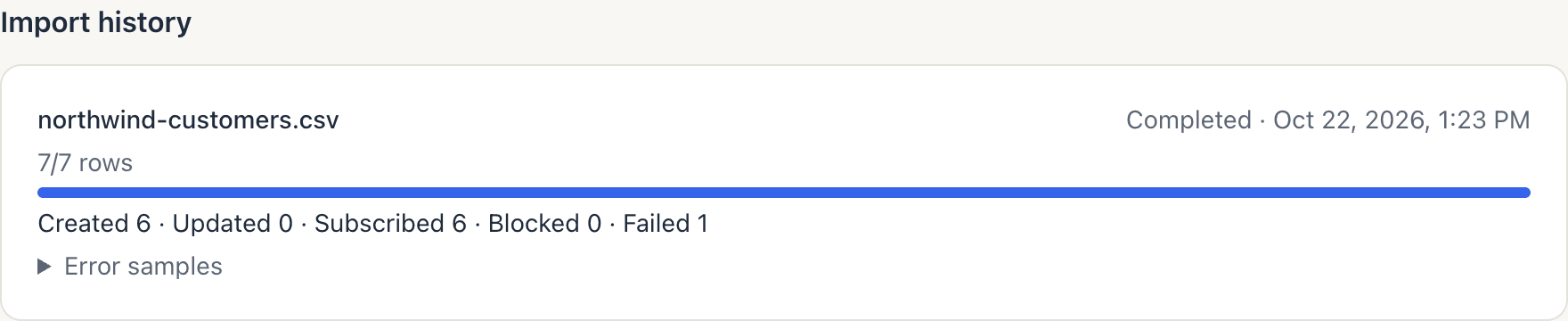
The summary line means:
| Count | Meaning |
|---|---|
| Created | New contacts |
| Updated | Existing contacts updated with the file's values |
| Subscribed | Newly subscribed to marketing |
| Blocked | Not subscribed because they unsubscribed earlier or are on a suppression list |
| Failed | Rows that couldn't be imported |
Open Error samples to see up to 20 failed rows by row number.
The uploaded file is deleted once the import finishes. The history keeps only the counts.
What happens to tricky rows
- Invalid email address: the row fails and is listed in the error samples.
- No email and no user ID: the row fails.
- The same email twice in the file: both rows update the same contact, and the later row's values win.
- Someone already in your contacts: they're updated, not duplicated. If they're already subscribed, they stay subscribed.
- Someone who unsubscribed or is suppressed (after a bounce or a spam complaint): their details are still stored, but they're never re-subscribed by an import. They count as Blocked. Only a fresh opt-in of their own, such as a confirmed signup form, can subscribe them again.
Consent is checked again when each email is sent, so anyone who unsubscribes after the import is skipped automatically.
Importing through Etta or an AI app
You can also ask Etta, or an AI app connected through MCP or the API, to prepare an import from CSV text (up to 1 MB per request). Nothing is imported until you approve it. The approval page shows how many rows are valid, duplicated, already in your account, unsubscribed or suppressed, along with the consent statement the app wrote. Check that statement yourself, then tick the confirmation (for a subscribe import: "I confirm everyone in this file agreed to get marketing email from us, as described above") and approve. Your workspace is the sender, so the attestation is yours.
FAQ
Can I import people without subscribing them?
Yes. Choose Import as contacts only — do not subscribe. They appear in Contacts as Not subscribed and receive no marketing email until they opt in.
Will importing again create duplicates?
No. Contacts are matched by email (or user ID), so a second import updates the same people.
Why weren't some people subscribed?
They had unsubscribed before or were on a suppression list, so they show under Blocked. EterMail never re-subscribes them from a file.
Can I add one person by hand?
Yes. Click Add contact on the Contacts page. Tick "This person agreed to receive our marketing email" only if they explicitly agreed.
What should I do after importing?
Build a segment if you want to target part of the list, then create a campaign.
Looking for something else? All guides →